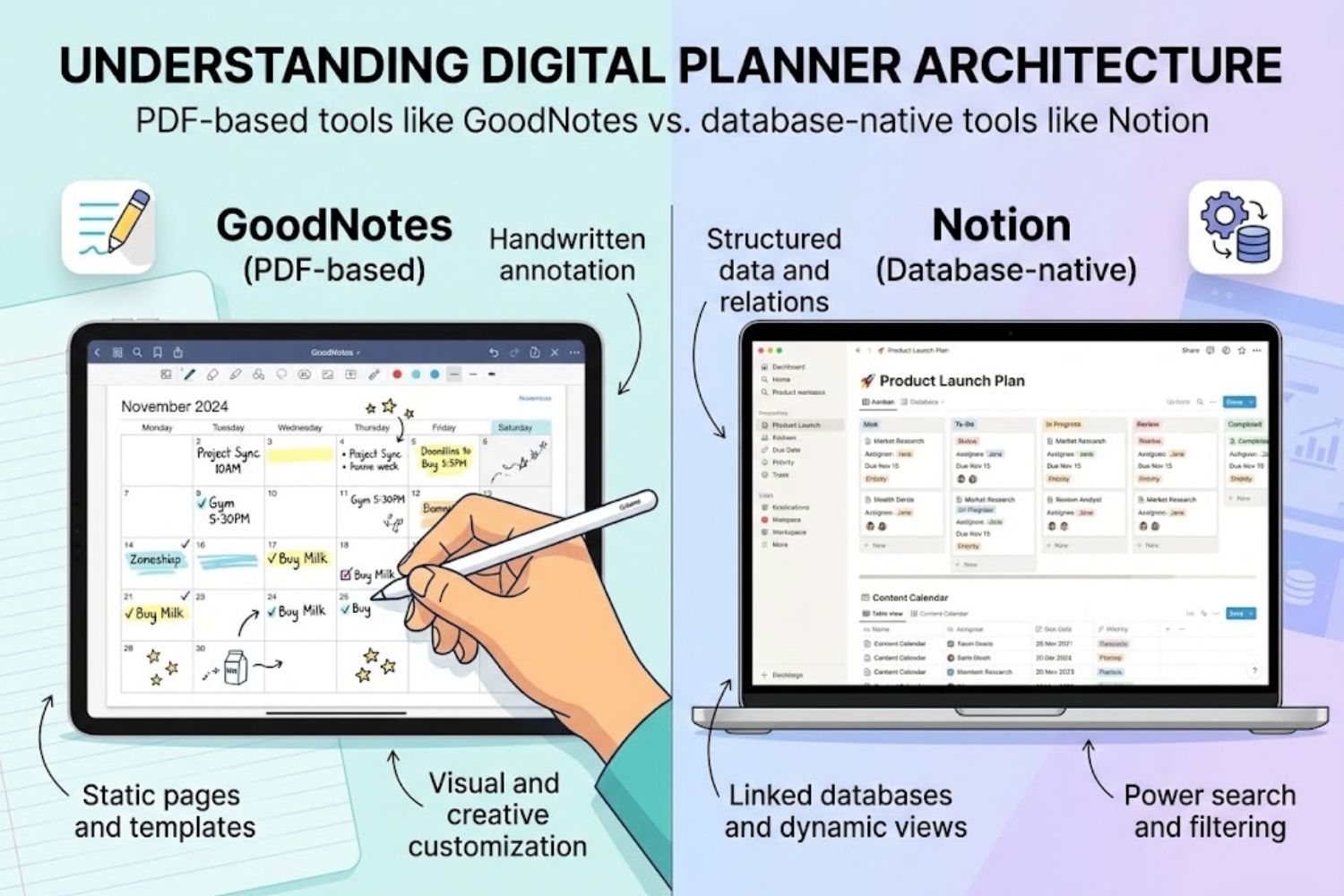
Choosing a digital planner isn’t just about picking the prettiest interface or the most advertised option. For tech professionals and development teams, it’s about understanding the fundamental architecture that determines whether a tool will integrate seamlessly into your workflow or become another abandoned app on your home screen.
Most digital planner comparisons treat all apps the same way—they list features and call it a day. But that approach misses something critical: not all digital planners are built on the same foundation. Some are fundamentally incompatible with how modern tech teams work.
This guide breaks down the architecture, integration capabilities, and real-world implementation challenges that other reviews ignore.
Understanding Digital Planner Architecture: The Gap Most Reviews Miss
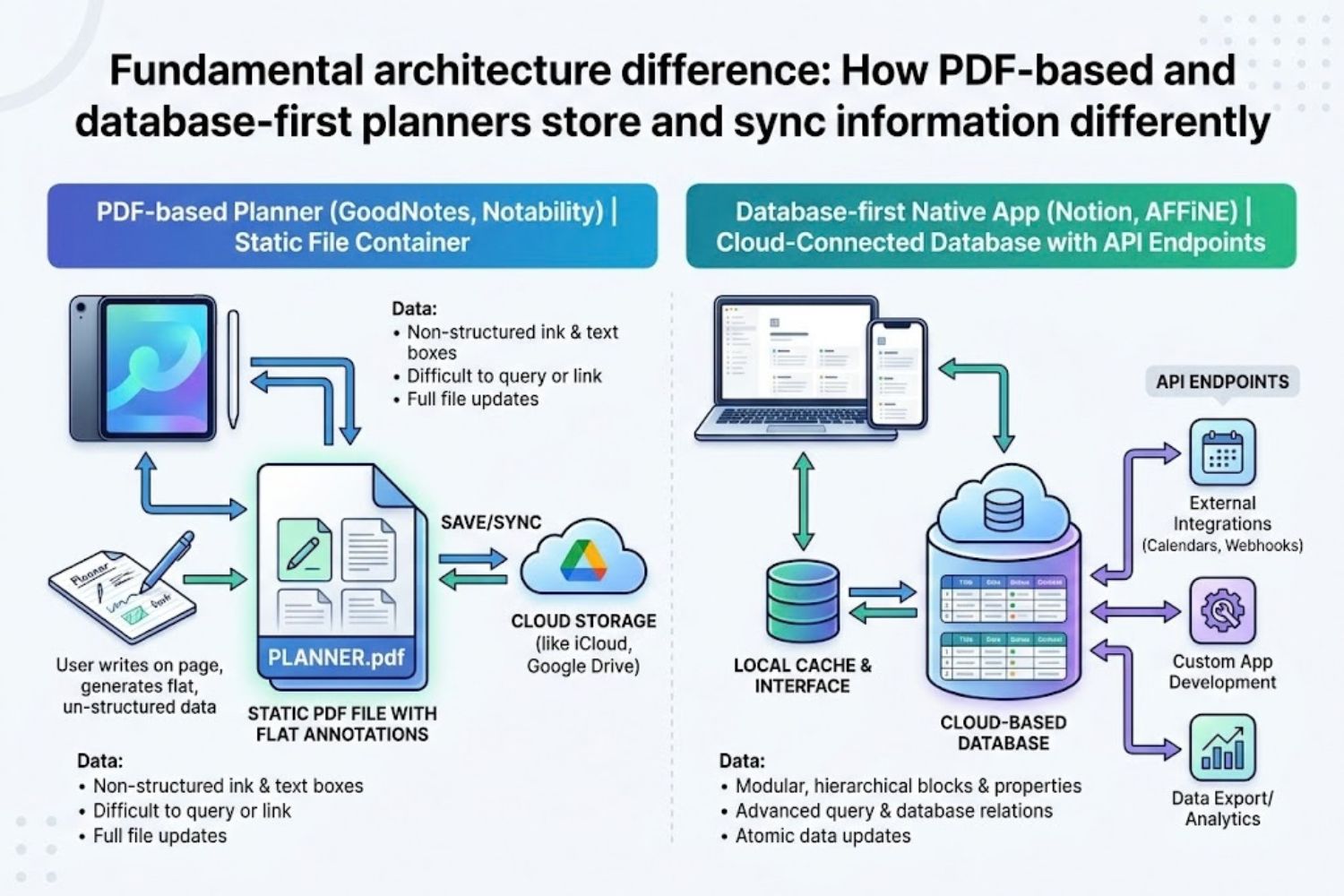
Before comparing individual apps, you need to understand the two fundamentally different approaches to digital planning. This distinction determines compatibility with your existing tech stack.
PDF-Based Planners vs. Native Applications
PDF-Based Planners (GoodNotes, Notability, Noteshelf)
These apps treat planning documents as enhanced PDFs. You download or create a digital planner template as a PDF file, then annotate it using stylus input or typed notes. The app becomes a sophisticated PDF viewer with handwriting recognition and organizational layers.
Strengths:
- Closer to paper-based workflows
- Lower barrier to entry (existing paper planner designs transfer easily)
- Excellent handwriting feel with hardware stylus
- Simple file management
- Perfect for people who think visually
Weaknesses:
- Data lives in static files, not connected databases
- Difficult to automate tasks or sync across devices programmatically
- Limited integration with calendar systems or task managers
- No built-in collaboration features
- Export/analysis of planning data requires manual effort or custom scripts
Native Applications (Notion, AFFiNE, Todoist)
These apps build planning functionality from the ground up using relational databases, cloud infrastructure, and API-first architecture. Your planner data lives in the application’s database, not as files.
Strengths:
- Seamless API integrations and automation
- Real-time collaboration
- Automatic syncing across devices
- Advanced querying and reporting
- Can connect to calendar apps, email, development tools, etc.
- Data portability through API access
Weaknesses:
- Steeper learning curve for complex features
- May feel over-engineered for simple planning
- Subscription dependency (most require ongoing payment)
- Less “paper-like” feel when handwriting is important
Why This Architecture Distinction Matters for Your Workflow
If you’re a solo developer who plans on your iPad during commutes, a PDF-based planner with stylus support makes sense. The smooth handwriting experience and minimal setup overhead create a frictionless workflow.
If you’re leading a technical team coordinating across sprints, dependencies, and multiple projects, a PDF-based planner becomes a bottleneck. You can’t programmatically pull data from a static PDF to build burndown charts or sync tasks to your GitHub issues automatically.
The architecture choice determines how tightly your planner integrates with your existing development tools, communication platforms, and automation infrastructure.
The Integration Difference
Here’s the practical implication: with PDF-based planners, you must manually keep your planner synchronized with other systems. Your task exists in three places (your planner, your project management tool, and your calendar), and keeping them in sync requires discipline.
With native applications, you can configure one-way or bidirectional syncing. Create a task in Notion, and it automatically appears in your calendar and Slack. Mark it complete in your task manager, and it updates in your Notion database.
For tech teams, this integration layer is the difference between a productivity tool and a productivity killer.
Visual + Handwriting-First Planners: Paper Emulators
These tools excel when visual thinking, handwritten notes, and the aesthetic experience of planning matter most. They’re the bridge between analog and digital workflows.
GoodNotes 6: Best for iPad Handwriting & PDF Workflows
What GoodNotes Does
GoodNotes is a PDF annotation and handwriting app that treats your iPad like a digital notebook. You import or create digital planner templates as PDFs, then write, draw, and organize using Apple Pencil or any compatible stylus.
The app’s killer feature is its handwriting-to-text recognition. You can write notes by hand, and GoodNotes converts them to searchable text without changing the visual appearance. Your handwritten plans become indexed and retrievable.
Key Features & Architecture
- Unlimited nested folder organization (crucial for managing multiple projects)
- PDF hyperlinks: You can link between pages, enabling dashboard-like navigation
- Handwriting recognition and text search across handwritten notes
- Elements tool: Save reusable visual components (headers, dividers, icons) to speed up planning
- Cloud sync across iPad, iPhone, and Mac
- Marketplace with thousands of pre-built digital planner templates
Technical Strengths & Limitations
Strengths:
- Works seamlessly with any PDF-based template library
- Responsive, performant app even with large documents
- Ownership model: Your planner files stay on your device
- No account dependency or cloud lock-in
Limitations:
- No built-in calendar integration
- Can’t programmatically sync tasks to other applications
- Collaboration is possible but cumbersome (requires sharing PDF files)
- No native automation or scripting
- Handwriting input requires compatible hardware (Apple Pencil or alternative stylus)
Best For:
- iPad-first workflows
- People who think visually and write by hand
- Solo practitioners who value ownership and privacy
- Those with extensive template libraries or custom designs
Not For:
- Developers who need API-driven task automation
- Teams requiring real-time collaborative editing
- People working primarily on desktops without iPad
- Workflows requiring tight calendar integration
Notability: Best for Audio-Synced Note Capture
The Notability Difference
While GoodNotes positions itself as an organized notebook, Notability optimizes for rapid note capture during lectures, meetings, or brainstorming sessions.
The signature feature is audio recording synchronized to your notes. Press record during a meeting, take notes while listening, and later tap any note to jump to that exact moment in the audio recording.
When Notability Wins Over GoodNotes
- You attend frequent meetings or lectures and need audio references
- You prefer continuous scroll navigation over page-by-page flipping
- Simplicity and speed matter more than folder depth
Platform Consideration:
Notability is Apple-only (iPad, Mac). GoodNotes supports iPad, iPhone, Mac, Windows, and Android—a critical difference for mixed-device teams.
Database-First Planners: Logical Organizers
These applications treat planning as structured information management. Your planner data exists in databases with relationships, properties, and queries rather than static pages.
Notion: Best for Complex Systems & Cross-Functional Teams
Workflow Architecture & Scalability
Notion is a workspace platform for building custom databases, documents, and workflows. You create your planner by combining relational databases (tracking projects, tasks, goals), pages (wikis and documentation), and timelines.
What makes Notion powerful for tech teams: you’re not using a pre-built planner. You’re architecting an information system tailored to your team’s exact workflow.
Example: A product team might build a Notion workspace with:
- A projects database linked to a tasks database linked to a timeline view
- A roadmap database pulling from the projects database
- Status updates pulling from task completion metrics
- Team wiki pages linking to relevant project databases
- Dashboards synthesizing data from multiple databases
This interconnected structure means one source of truth for team planning.
Integration Ecosystem
Notion’s API enables developers to:
- Push calendar events into Notion
- Sync GitHub issues to Notion databases
- Pull Notion tasks into Slack
- Build custom analytics dashboards from Notion data
- Automate recurring task creation
- Generate reports from Notion databases
This integration capability is where Notion becomes infrastructure rather than just an app.
Learning Curve Reality Check
Notion’s flexibility comes with a cost: complexity. Building an effective Notion workspace requires understanding relational databases, templates, and properties.
Typical learning timeline:
- Week 1-2: Understand database basics and create your first simple tracker
- Month 1: Build a functional workspace with basic relationships
- Month 2-3: Optimize with advanced features like rollups, formulas, and automation
- Month 3+: Build sophisticated workflows with team templates and integrations
For individuals, the learning curve is manageable. For organizations, you either need someone playing “Notion architect” or the team must invest in training.
Best For:
- Technical teams building custom information systems
- Organizations needing a single source of truth
- Teams with developers who can write API scripts
- Complex projects with interdependencies
Not For:
- Quick setup, minimal configuration users
- People who need zero learning curve
- Those requiring strong handwriting support
- Teams wanting a dedicated planning interface (Notion is general-purpose)
AFFiNE: The Hybrid Alternative (Visual + Database)
Why the Hybrid Model Matters
AFFiNE attempts to solve the false choice between visual and logical planning. It combines:
- A visual whiteboard canvas (for brainstorming, mapping relationships)
- A relational database layer (for structured task management)
- Rich text documents (for documentation)
- Local-first storage with cloud sync option
Architecture Advantage:
Unlike Notion (all databases) or GoodNotes (all visual), AFFiNE lets you work in the modality that fits the moment. Brainstorm visually on a whiteboard, then structure findings in a database. Switch seamlessly between modes without recreating data.
Best For Technical Teams:
- Teams that do both creative planning and structured execution
- Engineers who prefer building their own systems (AFFiNE is open-source)
- Workflows mixing visual whiteboarding with task databases
- Privacy-conscious teams (local-first architecture)
Important Consideration:
AFFiNE is younger than Notion and GoodNotes. Community support is smaller, and feature development is active but less mature. For risk-averse organizations, Notion’s stability may be preferable.
Task-Management Specialized Planners
These tools focus specifically on the task management and scheduling layer rather than note-taking or general documentation.
Todoist: Best for GTD (Getting Things Done) Implementation
Why Specialists Excel:
Todoist implements David Allen’s “Getting Things Done” methodology natively. If you’re already familiar with GTD (capture → clarify → organize → reflect → engage), Todoist moves faster than building GTD in Notion.
Features that matter:
- Natural language input: Type “Meet Sarah Tuesday 2pm” and it parses date and time
- Recurring tasks with flexible scheduling
- Project hierarchies and sub-projects
- Powerful filters for custom views
- Native integrations (Gmail, Slack, Google Calendar)
When to Use Todoist Over Notion:
You need task management executed at high speed, with minimal configuration. Todoist’s trade-off: it does tasks brilliantly but doesn’t pretend to be a full workspace.
Sunsama: Best for Time-Blocking & Deep Work
The Time-Blocking Advantage:
Sunsama optimizes for one specific workflow: time-blocking. You plan your day in hourly blocks, assign tasks to specific time slots, and track whether you stayed on schedule.
For teams focused on deep work (designers, engineers, writers), this focused approach works better than general-purpose planners.
Sunsama syncs with Todoist, Notion, GitHub, and Slack, pulling all your commitments into one time-blocked view.
Enterprise & Ecosystem Planners
Microsoft OneNote: Best for Microsoft 365 Integration
If your organization runs on Microsoft 365 (Outlook, Teams, OneDrive), OneNote offers seamless integration that other tools can’t match.
OneNote syncs with Outlook Calendar and Teams, keeping your planning visible within tools you already use daily.
Trade-off: OneNote is less specialized than dedicated planners. It’s flexible enough to become your planner, but it wasn’t designed with planning workflows as the core priority.
Morgen: Best for Calendar-First Planning
Morgen starts with your calendar as the source of truth. It aggregates all your calendars (Google, Outlook, Apple), then layers task planning, meeting notes, and time-blocking on top.
Perfect For:
- Teams whose time is their scarcest resource
- Roles with heavy meeting loads
- Organizations coordinating across time zones
- Workflows where “blocking time for deep work” is the primary planning activity
The Decision Framework: Choosing Your Planner Architecture
Rather than naming a single “best” planner, understand your workflow constraints and match them to the right architecture.
Quick Decision Tree
Do you need handwriting as part of your planning?
- Yes → GoodNotes or Notability
- No → Continue
Do you need real-time collaboration?
- Yes → Notion, AFFiNE, or Todoist
- No → Continue
Do you need integration with development tools (GitHub, CI/CD)?
- Yes → Notion or AFFiNE (for technical teams)
- No → Any option works
Is your primary planning activity time-blocking?
- Yes → Sunsama or Morgen
- No → Continue
Do you need video reviews or audio references?
- Yes → Notability (audio sync feature)
- No → Any option works
How much customization are you willing to do?
- Minimal (just use it out of the box) → Todoist or Sunsama
- Moderate (configure templates and views) → GoodNotes or Notability
- Maximum (build custom workflows) → Notion or AFFiNE
The Four Planner Personas
1. The Visual Thinker Works best with handwriting, sketching, and visual organization. Values the aesthetic experience of planning. Best tools: GoodNotes, Paper Bunny Planner PDF template, Notability
2. The Systems Architect Builds complex information systems connecting multiple data sources. Enjoys crafting tailored workflows. Best tools: Notion, AFFiNE
3. The Task Executor Focuses on rapid task capture, GTD implementation, and high-velocity processing. Best tools: Todoist, Sunsama
4. The Calendar Manager Optimizes time as the primary constraint. Blocks time ruthlessly for important work. Best tools: Morgen, Sunsama
Most people operate somewhere between two personas. The key is honest self-assessment: which characteristics dominate your planning behavior?
Common Implementation Mistakes
Mistake #1: Choosing based on aesthetics alone The beautiful planner you see on Instagram isn’t aligned with your workflow. Form follows function. Understand your planning behavior first, then evaluate whether the tool’s interface satisfies it.
Mistake #2: Over-customizing before stabilizing Spending weeks designing the perfect Notion template before actually using it. Instead, start minimal, plan using the tool for 2-4 weeks, then optimize based on actual friction points.
Mistake #3: Selecting a tool expecting it to change your behavior A new planner won’t make you organized if the underlying habits aren’t in place. The planner amplifies existing good habits; it doesn’t create them from nothing.
Mistake #4: Ignoring the maintenance burden Notion workspaces, complex template systems, and multi-tool integrations all require ongoing upkeep. Before committing, ask: “Who will maintain this system, and do we have bandwidth?”
Mistake #5: Avoiding hybrid workflows out of “single source of truth” dogma Sometimes a hybrid approach (GoodNotes for visual planning, Todoist for task management, Notion for project documentation) works better than forcing everything into one tool. One source of truth is valuable; two tools working better than one tool working poorly is more valuable.
Technical Comparison Matrix
Feature Comparison Table
| Feature | GoodNotes | Notability | Notion | AFFiNE | Todoist | Sunsama |
|---|---|---|---|---|---|---|
| Handwriting Support | ✓✓✓ | ✓✓✓ | ✗ | ✓ | ✗ | ✗ |
| Real-time Collaboration | Limited | Limited | ✓✓✓ | ✓✓ | ✓ | ✓ |
| API Available | Limited | Limited | ✓✓✓ | ✓ (Open-source) | ✓✓✓ | ✓ |
| Calendar Integration | Manual | Manual | ✓ (via integration) | ✓ | ✓✓ | ✓✓✓ |
| Audio Recording | ✗ | ✓✓✓ | ✗ | ✗ | ✗ | ✗ |
| Database/Relational | ✗ | ✗ | ✓✓✓ | ✓✓✓ | ✓ | Limited |
| Mobile Apps | ✓✓ | ✓✓ | ✓✓ | ✓ | ✓✓✓ | ✓✓ |
| Time-blocking | ✗ | ✗ | ✓ (manual) | ✓ (manual) | Limited | ✓✓✓ |
| Offline-first | ✓ (GoodNotes) | ✓ (Notability) | ✗ | ✓ (AFFiNE) | ✗ | ✗ |
Integration & API Capability Table
| Tool | API Tier | Native Integrations | Automation Support | Webhook Support |
|---|---|---|---|---|
| Notion | Advanced (Full REST API) | 50+ Official integrations | IFTTT, Zapier, Make | ✓ |
| AFFiNE | Developer (Open-source, REST API coming) | Growing | Custom scripts | Planned |
| Todoist | Advanced | Gmail, Slack, GitHub, Calendar | Zapier, IFTTT, Make | ✓ |
| Sunsama | Intermediate | Todoist, Notion, GitHub, Slack | Zapier, IFTTT | Limited |
| GoodNotes | Minimal | None (file-based) | Not supported | ✗ |
| Notability | Minimal | None (file-based) | Not supported | ✗ |
Data Portability & Export Options
| Tool | Export Formats | API Access | Lock-in Risk |
|---|---|---|---|
| Notion | CSV, Markdown, PDF (manual export) | Full API, self-hosted export scripts | Moderate (data export is manual) |
| Todoist | JSON, CSV | Full API | Low (robust export options) |
| AFFiNE | Multiple formats (open-source) | API planned | Low (open-source, local-first) |
| GoodNotes | PDF (native), Image export | File system access | Low (owns your PDF files) |
| Sunsama | Limited (depends on source tools) | Indirect via source integrations | Moderate |
| Notability | PDF, image formats | File system access | Low (owns your PDF files) |
Hybrid Workflow Strategy: What Competitors Never Discuss
Most productivity advice treats planner selection as a zero-sum choice. But sophisticated workflows often combine multiple tools, each optimized for specific tasks.
Why Single-Tool Planning Fails for Complex Workflows
Consider a engineering manager’s actual workflow:
- Morning planning: Visual, temporal—block time on calendar
- Backlog refinement: Relational, structured—prioritize dependencies
- Daily standup: Capture notes quickly—minimal friction
- Code review tracking: Programmatic, automated—linked to GitHub
- Retros: Reflection, freeform—visual whiteboarding
No single tool handles all these tasks equally well.
The Optimal Multi-Tool Stack for Tech Teams
Tier 1: Source of Truth Choose one system for authoritative project data. Usually Notion or Todoist.
Tier 2: Specialized Capture Add tools optimized for specific capture modalities:
- Quick task capture: Todoist (uses natural language parsing)
- Visual planning: GoodNotes or AFFiNE (whiteboard mode)
- Audio notes: Notability (audio sync feature)
Tier 3: Integration Layer Use automation glue (Zapier, Make, IFTTT) to sync between systems:
- Calendar events → Project database in Notion
- GitHub issues → Todoist inbox
- Slack reactions → Task status updates
Integration Glue Tools (IFTTT, Zapier, Make)
These platforms create workflows between disconnected apps:
Zapier Example Workflow: Trigger: New GitHub issue created → Search Notion for related project database → Create new task in Notion with GitHub issue details → Post Slack notification to #engineering
Result: GitHub issues become visible in your planning system without manual sync.
When to invest in glue tools:
- Your core planner is API-limited (GoodNotes, Notability)
- You need real-time syncing between 2+ tools
- Manual duplication is creating sync friction
Implementation Guide: Getting Started Without App Fatigue
“App fatigue” is real. Switching tools too frequently, over-customizing before using, and building elaborate systems before validating they actually work are common pitfalls.
Phase 1: Audit Your Current Workflow (Week 1)
Before choosing a planner, understand your actual planning behavior:
- Time audit: Where do you currently spend planning time? (Calendar? Email? Sticky notes? Previous planner?)
- Frequency audit: How often do you review and update plans? (Daily? Weekly? Sporadic?)
- Tool audit: What tools are already central to your workflow? (GitHub for developers, Slack for teams, Google Workspace, Microsoft 365?)
- Pain audit: What frustrates you most about your current system? (Sync between tools? Reminder friction? Lack of visibility?)
Document 3-5 specific pain points. These become your evaluation criteria for planner selection.
Phase 2: Choose Your Core Planner (Week 2)
Based on your audit, commit to one primary planner. Evaluate based on:
- Does it address my top 3 pain points?
- Does it integrate with my existing tool ecosystem?
- Is the learning curve acceptable for my team’s bandwidth?
- Does the pricing model align with our constraints?
Accept that no tool is perfect. You’re optimizing for 80% of your use case, not 100%.
Phase 3: Add Integrations Gradually (Weeks 3-8)
Start with the core planner used alone. After 2-3 weeks, identify the highest-friction sync point (usually between your planner and calendar, or between your planner and task manager).
Add one integration at a time. Wait 1-2 weeks between additions to let the system stabilize.
Example progression for a technical team:
- Week 1-2: Notion workspace set up, team learns basic views
- Week 3: Sync GitHub issues to Notion via Zapier
- Week 4-5: (System stabilizes, team gives feedback)
- Week 6: Sync Notion tasks to Google Calendar
- Week 7: Add Slack notifications for overdue tasks
- Week 8+: Consider more specialized tools if needed
Phase 4: Establish Sustainable Maintenance Habits (Week 9+)
Complex planning systems fail when nobody owns maintenance. Assign:
- Weekly reviewer: Updates templates, removes clutter, documents process changes
- Quarterly optimizer: Audits whether integrations still serve the workflow or should be removed
Maintenance takes 1-2 hours weekly for small teams. If this burden is unsustainable, simplify the system.
Frequently Asked Questions
Q1: Is Notion overkill for individual planning?
Not necessarily. Individual Notion workspaces can be wonderfully simple (a single database with tasks and dates). The complexity emerges only if you build it. Start minimal and expand based on actual need.
Q2: Can I use GoodNotes with cloud sync and collaboration?
Partially. You can sync GoodNotes files across your devices via iCloud, but multi-person real-time collaboration requires manual file sharing or cloud storage (Dropbox, Google Drive). For team collaboration, native apps (Notion, AFFiNE) are superior.
Q3: How much does a proper digital planning setup cost?
Varies significantly:
- Minimal: GoodNotes ($9.99 one-time) + free planner template = ~$10
- Mid-tier: Notion (free tier) + Todoist ($4/month) = ~$50/year
- Full-featured: Sunsama ($20/month) + Notion ($10/month) + integrations = ~$300+/year
Q4: Should I switch from my current planner?
Only if you’re experiencing specific friction. “A new planner exists” isn’t a good reason. “My current system can’t sync with GitHub and I’m manually copying tasks” is a good reason.
Q5: Is open-source planning better than commercial tools?
Trade-off: Open-source tools (AFFiNE, Logseq) offer customization and data control but require technical sophistication to self-host. Commercial tools offer customer support and seamless cloud infrastructure. Choose based on whether you have engineering time available.
Q6: How do I avoid the “perfect template” trap?
Set a hard deadline. Give yourself 2 hours maximum to set up your planner. After 2 hours, stop optimizing and start using. You’ll learn what you actually need within 2-4 weeks of real usage. Optimize then.
Q7: Can I use multiple planners without creating sync chaos?
Yes, if you establish clear ownership. Example: GoodNotes owns visual/aesthetic planning, Notion owns projects/dependencies, Todoist owns daily task capture. One-way syncing from Todoist to Notion prevents conflicts. Define the data flow explicitly.
Q8: Which planner works best for ADHD/neurodivergent planning?
Morgen and Todoist are frequently recommended because their task capture is fast (low friction). Sunsama’s time-blocking works for people who benefit from external structure. Notion can feel overwhelming; if you use it, keep initial setup minimal.
Q9: Is there a “best” planner for Mac-only users?
Yes: GoodNotes, Notability, or Notion. All three have excellent Mac applications. AFFiNE is equally viable for Mac. Avoid desktop-only apps unless you rarely work mobile.
Q10: How often should I switch planners?
Only when you’re experiencing specific pain that your current tool can’t address. Most burnout comes from frequent switching, not staying with a good tool longer than trendy. Stable planning systems > chasing optimization.