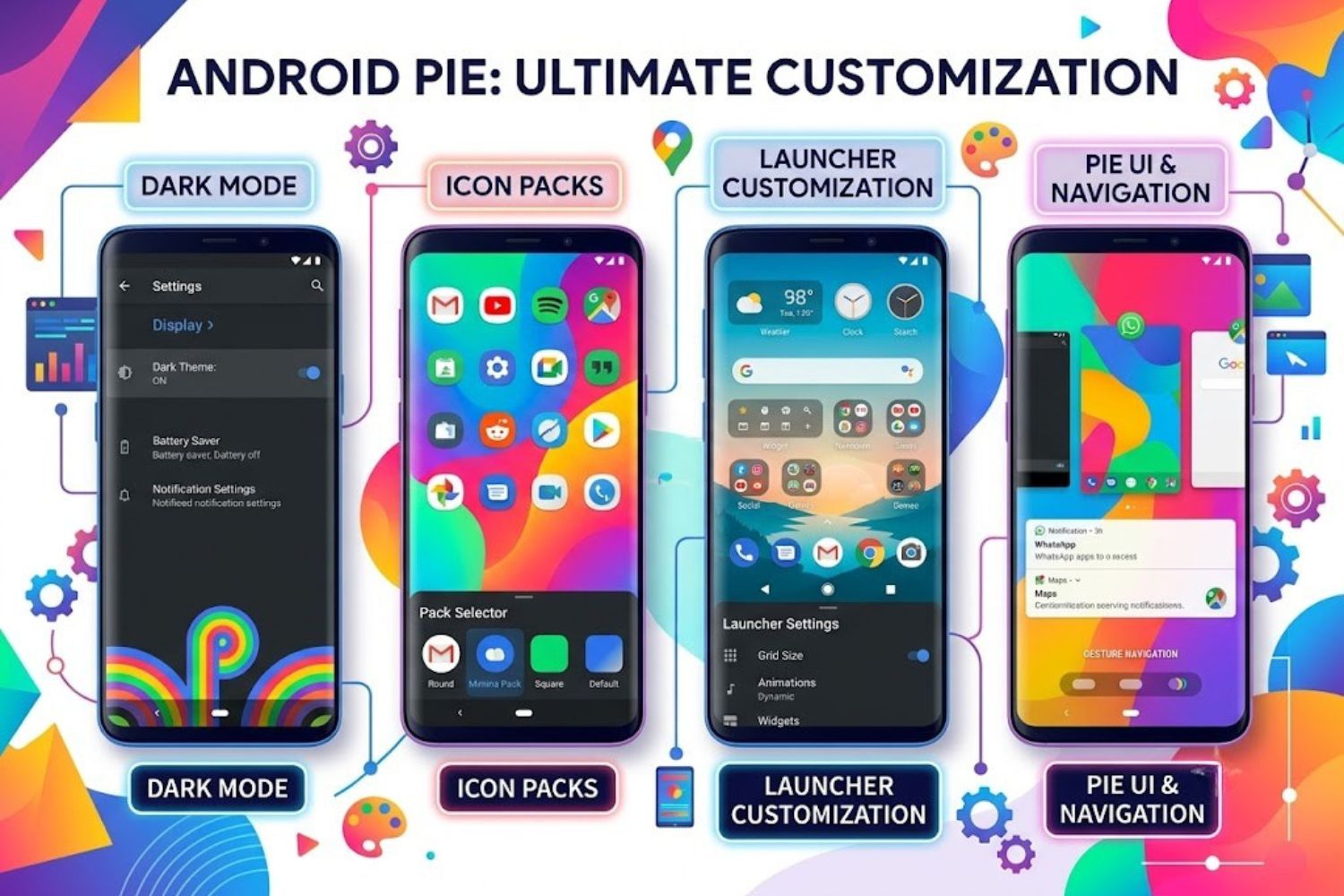
If you’re still using an Android Pie (Android 9) device in 2026, you might think your customization options are limited. But that’s not entirely true. While Android Pie doesn’t offer the system-wide dynamic theming of modern Android versions, it still provides multiple ways to personalize your phone’s appearance—from simple dark mode to advanced launcher customizations.
This guide walks you through every legitimate method to apply themes to Android Pie, explains what actually works in 2026, and shows you how to avoid common pitfalls.
What Are Android Pie Themes?
Understanding Theme Customization
Android Pie themes are visual customization packages that change how your device’s user interface looks and feels. They go beyond simple wallpapers. Themes can modify:
- System colors (notification shade, quick settings, status bar)
- Icon designs (app launcher icons)
- Font styles and sizes
- UI elements (buttons, toggles, dialogs)
- Wallpapers and lockscreen appearance
- Widget styling
Think of a theme as a complete visual makeover package—though the extent of that makeover depends on your device manufacturer and Android version.
How Themes Differ Across Manufacturers
This is crucial: Android Pie theming is fragmented. What works on a Samsung Galaxy device won’t work the same way on a OnePlus, Xiaomi, or stock Android phone.
Why? Each manufacturer adds its own customization layer on top of Android. Samsung uses One UI, Xiaomi uses MIUI, OnePlus uses OxygenOS, and Google Pixel phones run near-stock Android. Each layer includes different theming capabilities.
For example, Samsung’s One UI includes a built-in theme store with dozens of pre-made themes. Stock Android Pie offers minimal theming—basically dark mode only.
This means your theming options depend on:
- Your device manufacturer
- Your specific device model
- Whether your device received the latest Pie updates
- Your comfort level with third-party apps
Why Android Pie Themes Matter (Even in 2026)
You might wonder: if Android Pie is five years old, why customize it at all? Several reasons justify theming your Pie device.
Personalization Beyond Aesthetics
Customization isn’t vanity. It’s about making your device feel yours. When your phone reflects your personal style—whether that’s minimalist, dark, colorful, or nostalgic—you interact with it differently. You enjoy using it more.
This psychological factor affects user engagement. People who customize their devices tend to use them more intentionally rather than passively scrolling through defaults.
Accessibility & Eye Comfort
This one’s practical and health-related. Dark themes reduce eye strain, especially in low-light environments. For people with visual impairments, the ability to adjust colors, increase contrast, and change font sizes isn’t cosmetic—it’s essential.
Android Pie’s built-in dark mode, while limited, genuinely helps reduce strain on OLED screens. It also extends battery life on devices with organic LED displays because black pixels require less power.
Performance Considerations
Here’s what many users don’t realize: themes can affect performance. Overly complex themes with heavy animations or custom icon packs might consume slightly more RAM and battery. But well-designed themes—especially system-level ones—have minimal performance impact.
If your Pie device feels sluggish, choosing a lightweight theme is smarter than installing heavy customization apps.
Built-In Theming Options for Android Pie
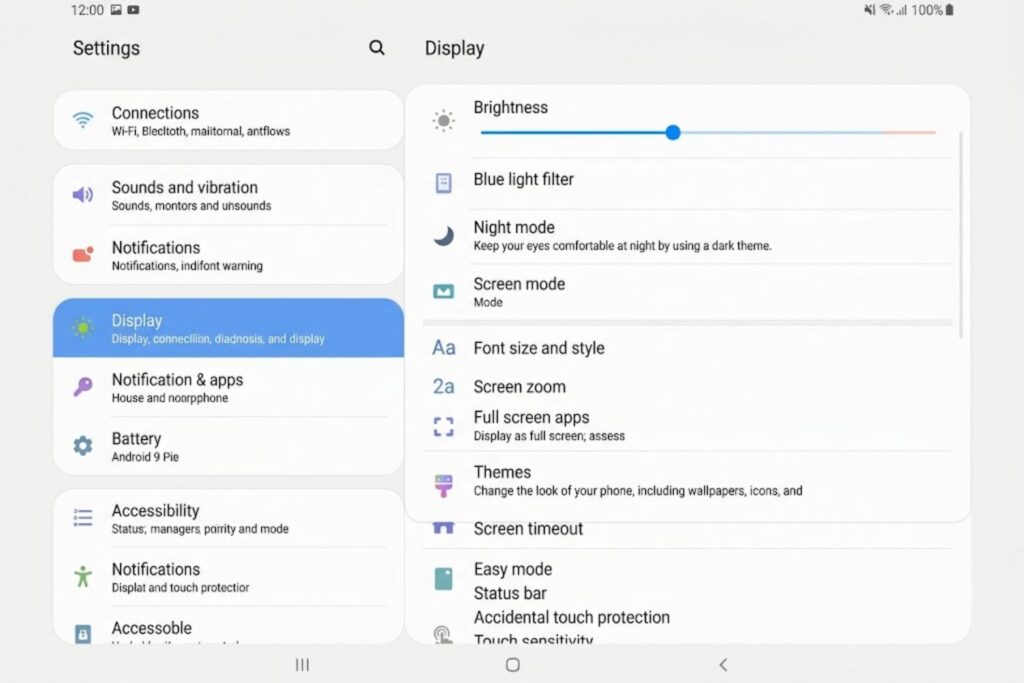
Your first stop should always be built-in options. These require no installation, work reliably, and won’t risk your device’s stability.
Samsung One UI Themes
If you’re using a Samsung Galaxy device (S9, S10, Note 9, Note 10, or any Pie-running Samsung), you have access to Samsung’s theme ecosystem.
How to Access:
- Open Settings → Display → Themes (exact menu may vary by region)
- Browse Samsung’s theme store
- Download free or paid themes
- Apply instantly
Important: Samsung changed its policy with Android Pie. Free themes now have a 14-day usage limit. After 14 days, your device automatically reverts to the default theme unless you convert the free theme to a trial version or purchase it.
You’ll receive notifications 1 day and 10 minutes before the reversion occurs. While controversial, this policy exists to compensate theme designers.
Workaround: If you like free themes, download a backup theme you can re-apply after the 14-day period expires.
Xiaomi MIUI Theme Engine
Xiaomi devices running Pie access the MIUI theme store, which is more generous than Samsung’s system.
Access:
- Open Themes app (pre-installed)
- Browse themes by category
- Download and apply
- Many themes remain free indefinitely
MIUI’s theme system integrates deeper than One UI. Themes can modify lock screen design, notification styling, and even app-level appearances on supported apps.
OnePlus OxygenOS Customization
OnePlus offers a lighter approach. The built-in customization focuses on:
- Dark mode (system-wide in most Pie versions)
- Accent colors (some versions allow custom accent color selection)
- Font selection (in Display settings)
OnePlus doesn’t have an extensive theme store like Samsung. Instead, OxygenOS is designed to pair with third-party launchers and icon packs for deep customization.
Stock Android Pie Dark Mode
Google Pixel and other stock Android devices running Pie offer the baseline: dark mode.
Access:
- Settings → Display → Advanced
- Toggle Dark theme
Stock Android’s dark mode is system-wide and affects most Google apps and many third-party apps (if developers enabled dark mode support). It’s simple, reliable, and battery-efficient on OLED screens.
How to Access System-Level Themes
Generic steps for most Android Pie devices:
- Settings → Display → Theme or Advanced Display Settings
- Look for Themes, Dark Mode, or Night Light options
- Adjust colors or select themes
- Some devices offer Accent Colors or Font Style options
Note: Exact menu locations vary by manufacturer and ROM version. Use your device’s search function in Settings if you can’t find it.
Third-Party Theme Apps for Android Pie (2026 Status)
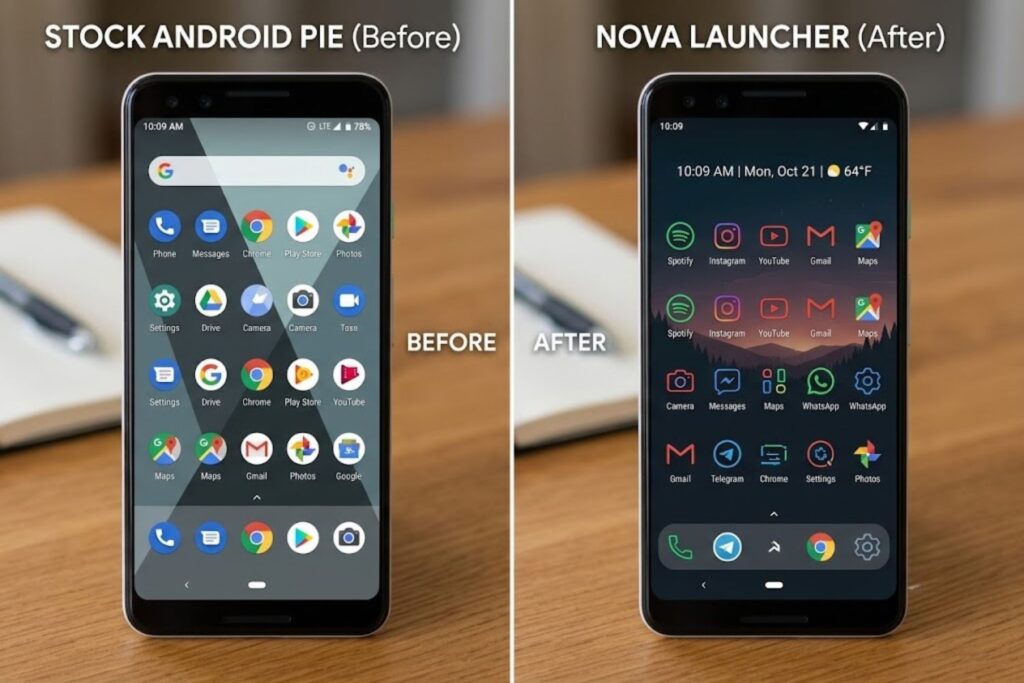
After built-in options, you can install third-party theming tools. But here’s the catch: not all older theme apps work reliably on Pie anymore. Some were abandoned by developers. Others conflict with modern Play Store policies.
Compatible Launcher Apps
Launchers are the most effective workaround for Pie theming limitations. A launcher replaces your home screen and app drawer, allowing comprehensive customization.
Launchers Still Actively Maintained for Pie:
- Nova Launcher (Most popular; extensive customization)
- Microsoft Launcher (Clean, Microsoft-integrated)
- POCO Launcher (Lightweight, smooth)
- Niagara Launcher (Minimalist design)
- Action Launcher (Advanced gesture control)
How they work:
- Download launcher from Play Store
- Grant necessary permissions
- Set as default launcher through System Settings
- Customize icon packs, grid sizes, animations, and colors
- Download compatible icon packs to complete the theme
Important: Using a launcher doesn’t replace system theming—it only customizes your home screen and app drawer. System notifications, status bar, and settings menu remain unchanged.
Icon Pack Systems
Icon packs change app icons. Most work through launcher apps, not system-wide.
How icon packs work:
- Download launcher (Nova, Microsoft, etc.)
- Download icon pack from Play Store
- Open launcher settings
- Select the icon pack
- Changes apply only to home screen icons
Thousands of icon pack designs exist—minimalist, colorful, retro, neon, iOS-style, etc.
Compatibility note: Many older icon packs no longer receive updates, but established ones continue working on Pie.
Wallpaper & Widget Solutions
Wallpapers and widgets contribute to your device’s overall theme personality.
Popular apps:
- Zedge (Wallpapers + ringtones)
- Pricetag (Minimalist widgets)
- KWGT (Custom widgets for launchers)
- Muzei (Rotating art wallpapers)
These don’t replace system themes but significantly affect how your device looks.
Installation Requirements & Compatibility
Before installing third-party theming apps, verify:
✓ Your Android version is actually Pie (Settings → About → Android version) ✓ RAM availability (theme apps need 2GB+ free space) ✓ Device compatibility (check app reviews for your device model) ✓ Play Store availability (app must be available in US Play Store)
Step-by-Step Guide: Installing Themes on Android Pie
Method 1: Using Built-In Theme Store (Easiest)
For Samsung devices:
- Open Settings
- Tap Display
- Select Themes
- Browse available themes (organized by category)
- Tap a theme to preview
- Tap Apply or Download
- Wait for installation (usually 30 seconds)
- Theme applies automatically
For MIUI devices:
- Open the Themes app (pre-installed)
- Tap Mine → Theme Store
- Browse or search for themes
- Tap a theme and select Apply
- Confirm the installation
Method 2: Installing Launcher Apps
Example: Nova Launcher
- Open Google Play Store
- Search “Nova Launcher”
- Tap Install
- Wait for installation to complete
- Open Nova Launcher
- Tap Open or find it in app drawer
- Grant requested permissions
- Long-press home screen → Nova Settings
- Browse customization options (icon packs, grid size, animations)
- Select an Icon Pack (requires separate download)
- Close settings—changes apply immediately
Download an icon pack:
- In Nova Settings, select Look & Feel → Icon Pack
- Tap Get More Icon Packs
- Choose an icon pack from Play Store
- Install it
- Return to Nova Settings and apply it
Method 3: Applying Icon Packs (If Using Third-Party Launcher)
- Open Google Play Store
- Search for icon pack (e.g., “Minmalalist Icons” or “iOS Icon Pack”)
- Read reviews to verify Pie compatibility
- Tap Install
- Once installed, open your launcher settings
- Navigate to Icon Pack or Icons
- Select the newly installed pack
- Icons change immediately on home screen
Method 4: Custom ROMs (Advanced)
This method isn’t for casual users.
What: ROMs are completely custom versions of Android. Installing one requires unlocking your bootloader, rooting your device, and flashing a ROM file.
Popular Pie ROMs:
- LineageOS (Heavy customization, excellent theme support)
- Paranoid Android (Advanced features, complex setup)
- AICP (Community-driven, frequent updates)
Risks:
- Void manufacturer warranty
- Lose access to some manufacturers’ services
- Potential brick your device if something goes wrong
- Require technical knowledge
- Manual updates needed
Reality: For most users, this isn’t worth the risk. Stick with Methods 1-3.
Best Theme Apps Still Working With Android Pie
Not all theme apps from 2019 still function. Here’s what actually works in 2026.
Top Launchers for Pie Devices
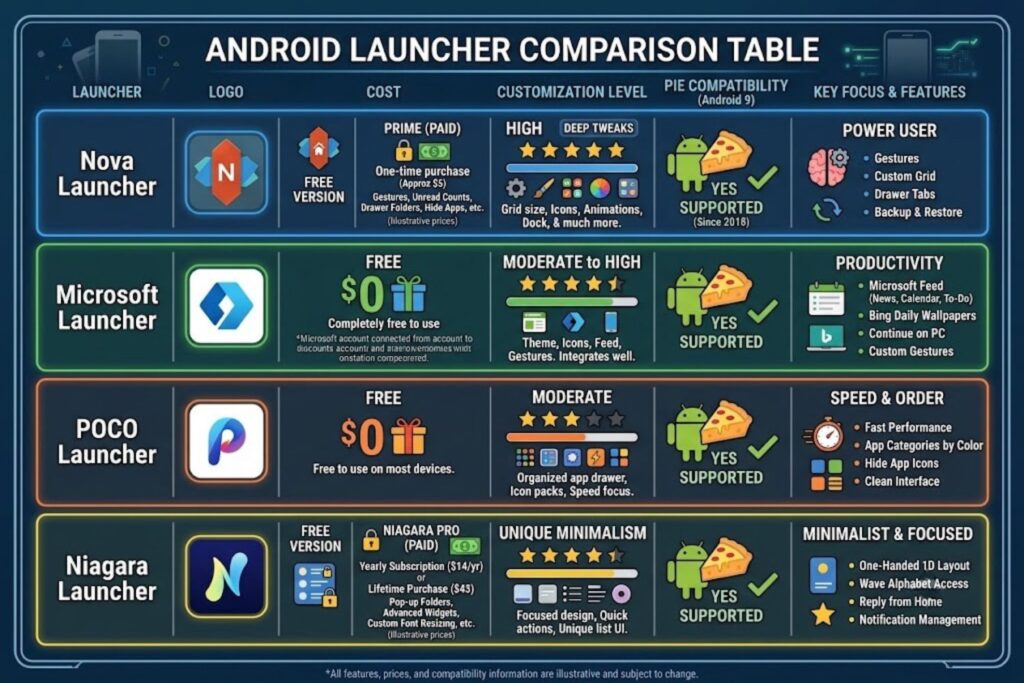
| Launcher | Cost | Customization | Pie Compatible | Best For |
|---|---|---|---|---|
| Nova Launcher | Free/Paid | Extensive | ✓ Yes | Power users |
| Microsoft Launcher | Free | Moderate | ✓ Yes | Microsoft ecosystem |
| POCO Launcher | Free | Moderate | ✓ Yes | Lightweight performance |
| Niagara Launcher | Free/Paid | Minimal | ✓ Yes | Minimalists |
| Action Launcher | Free/Paid | Advanced | ✓ Yes | Gesture control |
| Lawnchair | Free | Extensive | ✓ Yes | Pixel Launcher lovers |
Icon Packs That Work Best
These icon pack creators actively maintain their designs:
- Material Design (Google’s clean aesthetic)
- Linebit (Popular minimalist style)
- Pixel Icons (Pixel phone aesthetic)
- Stark (Monochrome design)
- Crayon (Colorful, playful)
Check before installing: Read the most recent reviews. If someone from 2026 confirms it works on Pie, you’re safe.
Wallpaper Apps & Widgets
Apps that reliably work on Pie:
- Zedge (Massive wallpaper library, works flawlessly)
- Unsplash (High-quality photography wallpapers)
- Walli (Artistic designs)
- KWGT (Custom widgets; requires Nova or similar launcher)
Compatibility Checklist
Before installing anything:
□ App has been updated within the last 12 months (check Play Store) □ App has minimum 4-star rating with current reviews from Pie users □ App description explicitly mentions Pie/Android 9 support □ Latest reviews (2025-2026) mention no issues □ App requires Android 8.0 or lower as minimum version
Android Pie Theming Limitations Explained
Understanding Pie’s constraints helps you set realistic expectations.
Why Full System-Wide Theming is Restricted
Android Pie doesn’t support true system-wide theme modification like Android 10+ does. Why?
Technical reason: Android Pie’s framework doesn’t include the dynamic theming engine introduced in Android 10. This engine allows system-level color and style changes across the OS.
Policy reason: Google wanted consistency and stability. Allowing apps to modify system colors could create visual chaos and security issues.
Result: You can customize your home screen extensively (via launchers) but can’t change system UI colors without rooting or installing custom ROMs.
App-Level Theme Support Issues
Even on modern Android versions, not all apps support system theming. On Pie, this limitation is more pronounced.
Why? Developers must explicitly add dark mode support. Many apps from 2017-2019 never received updates to support it.
Example: An older banking app might not support dark mode on Pie. You’ll use dark theme everywhere except inside that app.
Samsung’s 14-Day Free Theme Limitation
<cite index=”3-1″>Starting with Android Pie, Samsung limits free theme usage to 14 days after application, requiring users to either purchase themes or switch to trial versions provided by patched theme systems.</cite>
What happens:
- You apply a free Samsung theme
- You receive notifications at day 13 and day 14
- After 14 days, your device reverts to the default Samsung theme
- You can re-apply the same theme to restart the 14-day cycle
Why Samsung did this: To compensate theme designers and incentivize purchases of premium themes.
Workaround:
- Keep a list of 2-3 favorite free themes
- After 14 days, re-apply one
- Or pay a small amount (usually $1-3) to permanently unlock a premium theme
Workarounds & Solutions
If you want permanent free themes:
- Use a third-party launcher (Nova, Microsoft, etc.) with icon packs instead
- Install custom ROMs (advanced; eliminates Samsung’s restrictions)
- Switch to Xiaomi (MIUI themes remain free longer; requires new device)
- Purchase themes (many are only $0.99)
If you want system-wide themes without rooting:
Honestly? Pie can’t do this without a custom ROM. Modern Android (12+) handles this natively. This is a real limitation of the Pie era.
Troubleshooting Common Android Pie Theme Issues
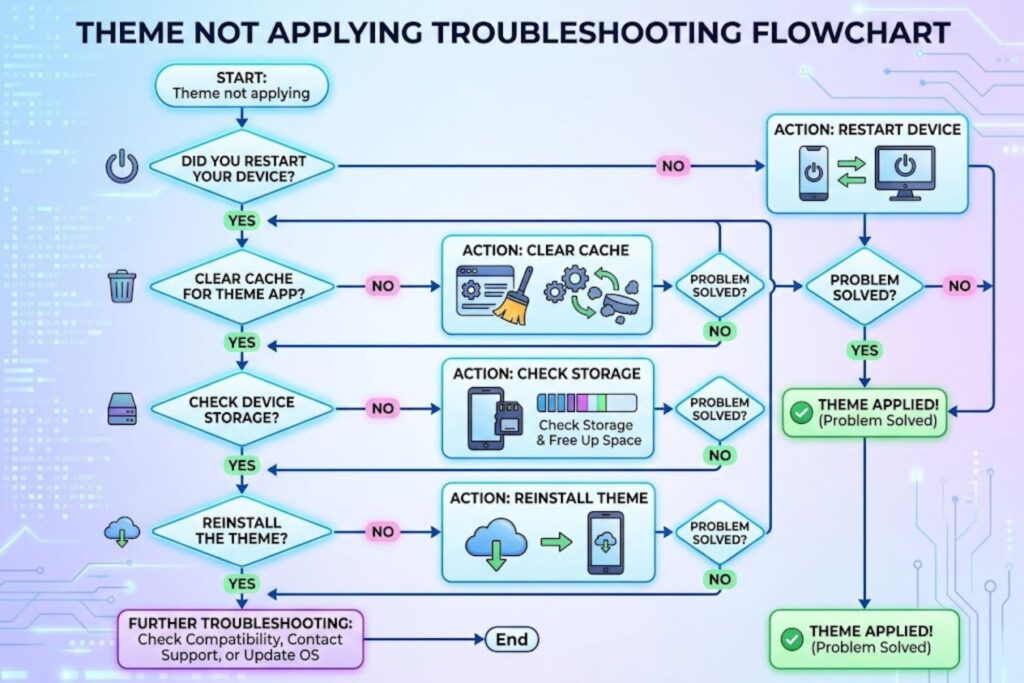
Themes Won’t Apply
Problem: You download a theme, but nothing changes.
Solutions:
- Restart your device (obvious but frequently fixes this)
- Check storage (you need at least 1GB free space)
- Clear app cache (Settings → Apps → Theme Store → Storage → Clear Cache)
- Reinstall the theme (sometimes downloads corrupt)
- Check compatibility (verify your device model is supported)
Launcher Crashes After Installing Theme
Problem: Your launcher force-closes when you apply an icon pack.
Solutions:
- Incompatible icon pack (remove it: Launcher Settings → Icon Pack → Default)
- Out-of-date launcher (update to latest version via Play Store)
- Corrupted icon pack (uninstall and reinstall)
- Insufficient RAM (close background apps before opening launcher settings)
If nothing works: Reset launcher settings (Settings → Apps → Your Launcher → Storage → Clear Data, then reconfigure).
Icons Not Changing
Problem: You installed an icon pack, but home screen icons remain unchanged.
Solutions:
- Icon pack not applied (open launcher settings and confirm selection)
- Launcher doesn’t support the icon pack (some launchers don’t work with all packs)
- Certain apps excluded (some icon packs don’t include system icons)
- Try a different icon pack (if one doesn’t work, another might)
Permission Errors
Problem: Apps request permissions you’re uncomfortable granting.
Reality: Theme apps need these permissions to work:
- Modify System Settings (to change some visual elements)
- Storage Access (to read wallpapers and theme files)
- Device Admin (for some custom ROM managers)
Safety tip: Only install theme apps from reputable developers with millions of downloads and recent reviews. Avoid obscure apps with few ratings.
Android Pie vs. Modern Android: Theming Evolution
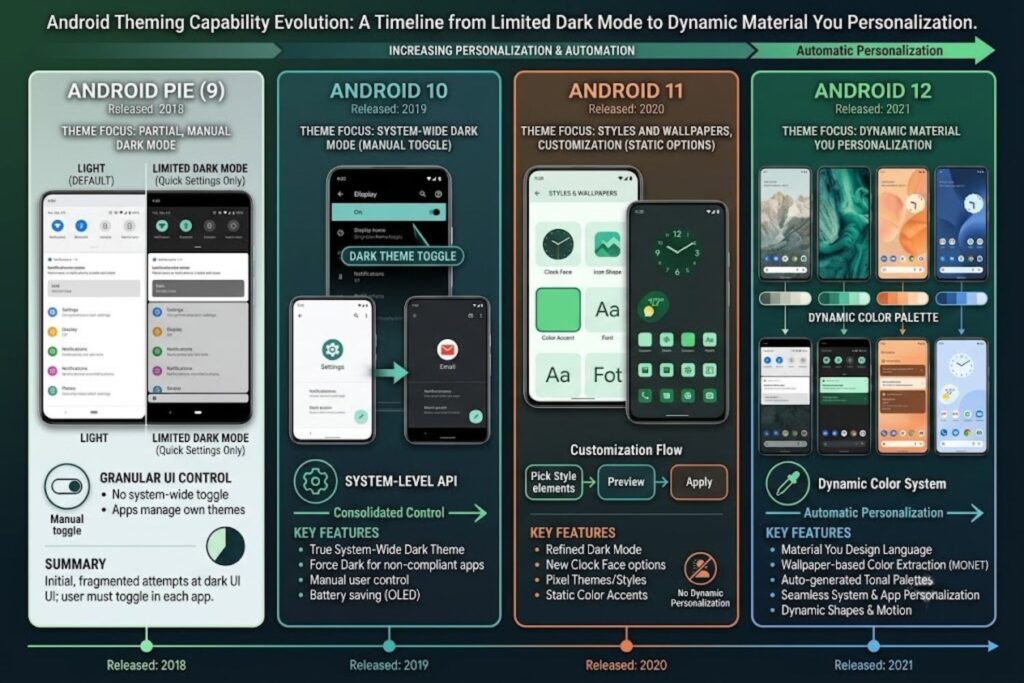
What Changed in Android 10+
Android 10 introduced Material Design 2 and the dynamic theming engine. Here’s what you’re missing on Pie:
| Feature | Pie | Android 10+ |
|---|---|---|
| System-wide dark mode | ✓ Basic | ✓ Complete |
| Dynamic colors | ✗ No | ✓ Yes (10-11) or AI-generated (12+) |
| Per-app theming | ✗ Limited | ✓ Full support |
| Accent color customization | ✗ No (Stock) | ✓ Yes |
| Material You personalization | ✗ No | ✗ No (12+) ✓ Yes (12+) |
Real-world impact:
- Android 12+ allows dozens of system UI colors from your wallpaper
- Pie offers dark/light mode only
- Modern Android has significantly deeper customization
When to Upgrade Your Device
Upgrade if:
- You heavily customize your device and want system-level options
- You want true dynamic theming beyond colors
- Your Pie device is running slowly
- You need features only modern Android offers
- You’ve owned your device 4+ years
Keep your Pie device if:
- It still performs well for your needs
- You’re satisfied with launcher + icon pack customization
- You want to avoid the cost of upgrading
- You prefer the older, simpler interface
Making the Most of Pie Themes Now
Since Pie’s theming is limited, maximize what’s possible:
Combine multiple approaches:
- Enable system dark mode (Settings → Display)
- Install a launcher (Nova)
- Apply an icon pack
- Use custom wallpaper that complements your colors
- Install complementary widgets
This combination creates a cohesive, personalized experience even within Pie’s constraints.
Expert Tips for Maximum Pie Customization
These tactics go beyond the basics.
Combining Multiple Customization Tools
The key to impressive customization on Pie is layering tools:
Complete customization stack:
- Base: System dark mode enabled
- Launcher: Nova Launcher with custom grid (5×6 instead of default)
- Icons: Coherent icon pack (all icons match aesthetically)
- Widgets: KWGT custom widget for quick access
- Wallpaper: High-resolution image that complements icon pack colors
- Font: Larger font size if accessibility is priority
Each element by itself is minor. Combined, they create a professional-looking, personalized device.
Battery Impact of Themes
Dark mode actually saves battery (on OLED screens):
- Traditional LCD screens: negligible impact
- OLED screens: 15-20% battery savings in typical usage
Heavy launchers increase battery consumption:
- Stock launcher: minimal impact
- Nova Launcher: 2-3% additional drain (worth it for most users)
- Multiple background tasks in launcher: significant drain (avoid)
Icon packs: Virtually no battery impact.
Bottom line: Don’t avoid customization for battery reasons. The experience improvement outweighs minor battery costs.
Safety & Security Considerations
Safe practices: ✓ Download theme apps only from Google Play Store ✓ Choose apps with millions of downloads and recent positive reviews ✓ Avoid granting unnecessary permissions (read the permission explanations) ✓ Don’t modify system files unless you know what you’re doing ✓ Keep your device updated to the latest Pie patch ✓ Don’t root your device unless you’re technically comfortable doing so
Red flags: ✗ Unknown developer with few downloads ✗ App asks for admin access without clear reason ✗ Older app with last update in 2018 ✗ Requires you to disable Play Protect ✗ Reviews mention data privacy concerns
Theme Performance Optimization
Keep your device snappy:
- Don’t install multiple launchers (choose one)
- Limit background widgets (each one uses RAM)
- Avoid overly animated icon packs (smooth, simple packs perform better)
- Restart your device monthly (clears temporary memory)
- Close unused apps before applying themes
If your device slows down after theming, the issue is likely too many background tasks—remove unused widget apps or icons.
FAQ SECTION
Frequently Asked Questions
Q1: Can I apply themes to Android Pie without Google Play Store?
A: Technically yes, through custom ROMs or sideloading, but it’s risky and complex. Google Play Store is the safe method for everyone except experienced Android developers.
Q2: Do themes on Android Pie void my warranty?
A: Using built-in themes or third-party apps from Play Store doesn’t void warranties. Custom ROMs and rooting typically do. Check your manufacturer’s policy.
Q3: Will themes slow down my Android Pie device?
A: Well-designed themes have minimal impact. Overly complex launchers with heavy animations might slightly reduce performance, but it’s usually unnoticeable on modern Pie devices.
Q4: Why do Samsung themes expire after 14 days?
A: Samsung implemented this policy to compensate theme designers. Free themes are essentially trials. You can re-apply them or purchase permanent licenses for a few dollars.
Q5: What’s the best launcher for Android Pie?
A: Nova Launcher (most customization), Microsoft Launcher (most stable), or POCO Launcher (most lightweight). The “best” depends on your priorities.
Q6: Can I change system notification colors on Android Pie?
A: Not without rooting or custom ROMs. This is a Pie limitation. Modern Android versions allow this natively.
Q7: Do icon packs work on all Android Pie devices?
A: Icon packs work through third-party launchers, not natively. Any Pie device can use them if you install a compatible launcher first.
Q8: Is it safe to download themes from third-party websites?
A: No. Stick to Google Play Store. Third-party sites might contain malware. Play Store vets apps before listing them.
Q9: How do I revert to stock theme if a theme causes issues?
A: Settings → Display → Themes → Reset to Default (exact steps vary by manufacturer). Or uninstall the theme app and restart your device.
Q10: Can I use both a launcher AND a system theme simultaneously?
A: Yes. System themes affect overall UI (notifications, settings). Launchers affect home screen and app drawer. They work together without conflict.
Q11: Do I need to root my device to apply themes?
A: No. Rooting is only necessary for advanced customization (custom ROMs, system-level modifications). Built-in themes and third-party launchers work without rooting.
Q12: What’s the difference between a theme and an icon pack?
A: Themes modify overall visual presentation (colors, fonts, system elements). Icon packs only change app icons. Icon packs usually require a launcher to function.
Q13: Why do some theme apps show “Incompatible with your device” in Play Store?
A: The app requires Android 10+ or your device isn’t supported by the developer. Check the app description for minimum Android version.
Q14: Can I create my own theme for Android Pie?
A: Yes, through custom ROM development or using theme builder tools (requires technical knowledge). For average users, combining launchers and icon packs is the practical alternative.
Q15: Will updating Android from Pie to a newer version preserve my themes?
A: Some might transfer, but most custom settings (launcher preferences, icon packs) remain installed but might need reconfiguration. Built-in themes usually don’t transfer.