Yet every year, millions of tech shoppers scroll through specifications they don’t understand, compare processors they can’t pronounce, and ultimately make decisions they regret within months.
The problem isn’t Dell’s lineup—it’s that most buying guides treat laptops like commodity products. They list models, quote prices, and call it done. Real laptop buying requires understanding your needs first, then matching them to the right Dell product line.
This guide does exactly that. We’ll walk through a decision framework you can use to find the right Dell laptop the first time, explain the specifications that actually matter, and highlight what competitors consistently miss.
Understanding Dell’s Laptop Lineup
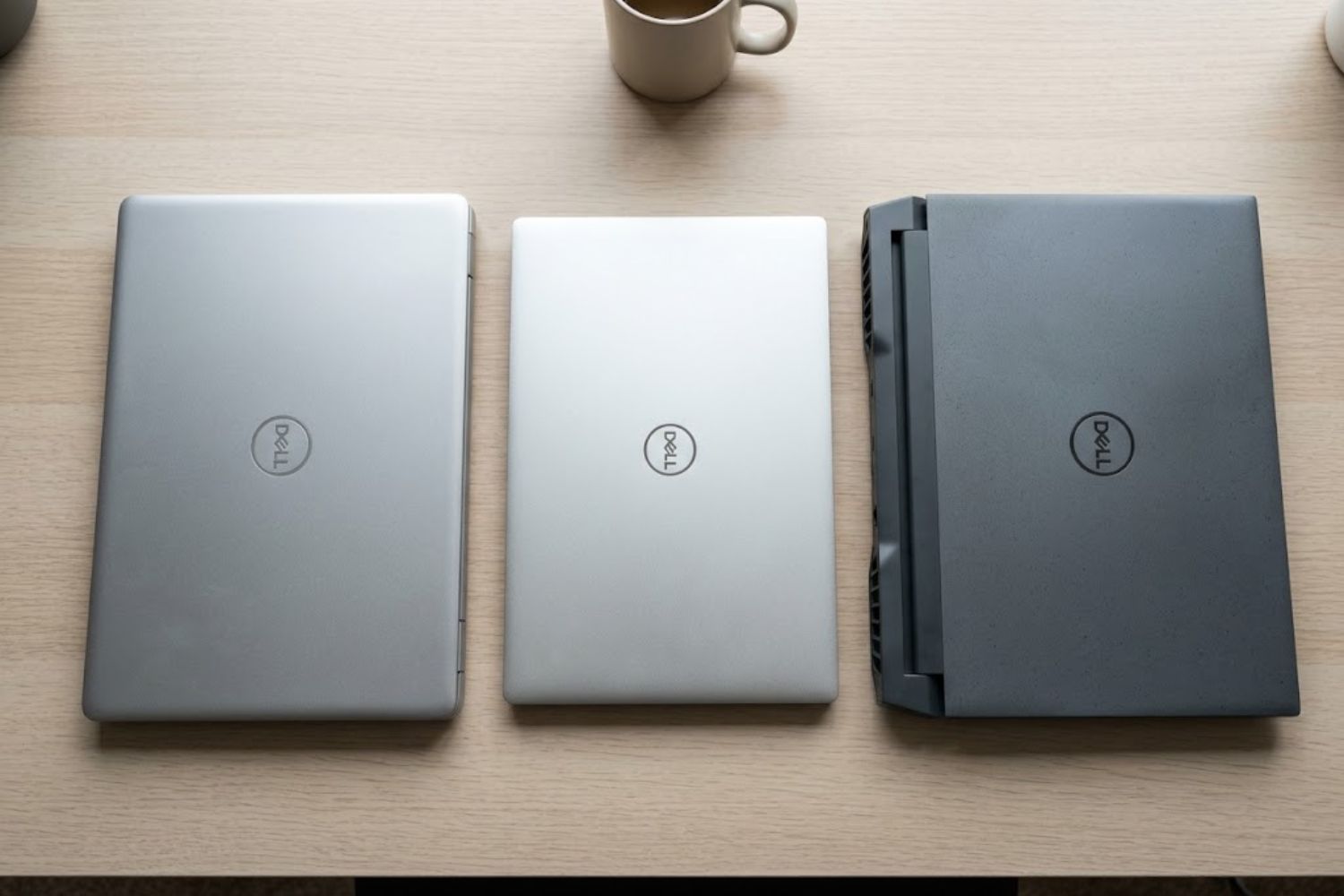
Dell manufactures approximately 50+ laptop models annually, organized into five core lines. Understanding these lines immediately eliminates 80% of confusion.
The Five Core Series (XPS, Inspiron, Latitude, G-Series, Alienware)
Dell XPS (eXtreme Performance System)
The XPS line represents Dell’s premium consumer-focused platform. These laptops prioritize design, display quality, and performance for professionals and power users. XPS models are available in 13″, 14″, 16″, and 17″ sizes, with OLED display options and current-generation Intel or Snapdragon processors.
Starting price: $1,200-$1,400 Typical user: Designers, video editors, content creators
Dell Inspiron
Inspiron is Dell’s most diverse line—the “something for everyone” category. You’ll find budget models starting under $300, mid-range productivity laptops around $600-$800, and premium Inspirons approaching $1,500. The tradeoff: Inspiron prioritizes value over premium materials.
Starting price: $299-$1,200+ Typical user: Students, general office workers, home users
Dell Latitude
The business-first series. Latitude emphasizes reliability, manageability, and long-term support. These laptops include business features like docking stations, enhanced security, and multiday battery life in designs built for corporate environments.
Starting price: $900-$1,500+ Typical user: Business professionals, corporate deployments
Dell G-Series
Gaming laptops without premium pricing. The G-Series delivers dedicated GPUs, high-refresh-rate displays, and thermal designs optimized for sustained performance—at price points 30-40% lower than Alienware.
Starting price: $800-$1,300 Typical user: Casual to serious gamers, streaming enthusiasts
Alienware
Alienware is gaming taken seriously. These systems use the best components, aggressive cooling, and premium materials. Expect prices starting around $1,200 and climbing to $3,000+ for fully configured systems.
Starting price: $1,200-$3,000+ Typical user: Competitive gamers, extreme performance seekers
Why Dell’s Product Segmentation Matters
Dell doesn’t randomly create product tiers. Each line targets a specific use case with different engineering priorities.
An XPS 13 costs $1,300 while an Inspiron 14 costs $500. Both have 16GB RAM and 512GB SSD. Why the price difference?
The XPS 13 prioritizes: premium materials (machined aluminum), OLED display (superior color accuracy), thermal efficiency (runs cooler and quieter), and industrial design that’s visible in every detail.
The Inspiron 14 prioritizes: value per dollar, satisfactory performance for everyday tasks, and hitting price targets retailers demand.
Neither is “better”—they solve different problems. Understanding which line fits your priorities prevents both overspending and underspending.
Entry-Level vs. Premium: Real Performance Differences
A $300 Inspiron 15 with an AMD Ryzen 5 and 8GB RAM handles:
- Email and web browsing
- Google Workspace and Microsoft 365
- Streaming video
- Basic photo editing
- Writing and document work
The same tasks run fine on a $1,400 XPS 13. The difference isn’t capability—it’s speed, reliability under continuous use, and how the laptop degrades over time.
Premium Dell models typically last 5-7 years with consistent performance. Budget models often slow down noticeably after 2-3 years. If you’ll use the laptop 40+ hours weekly, the premium model becomes economical.
A Decision Framework: Finding Your Perfect Dell
Rather than listing “best” models (subjective and quickly outdated), let’s build a personal decision framework.
Step 1 — Define Your Primary Use Case
This single question determines 60% of your buying decision.
Light Use: Web browsing, email, document editing, streaming
- Required RAM: 8GB minimum
- Required storage: 256GB SSD minimum
- Processor tier: Current-generation base model (AMD Ryzen 5, Intel Core 5)
- Example: Inspiron 14 (Intel Meteor Lake base config)
Moderate Productivity: Multiple browser tabs, photo editing, video conferencing, spreadsheet work
- Required RAM: 16GB
- Required storage: 512GB SSD
- Processor tier: Mid-range (AMD Ryzen 7, Intel Core Ultra 5)
- Example: Inspiron 16 Plus or Latitude 5450
Content Creation: 4K video editing, 3D rendering, large photo libraries, audio production
- Required RAM: 32GB+ (16GB is minimum but creates workflow friction)
- Required storage: 1TB+ SSD (plus external backup)
- Processor tier: High-end (Intel Core Ultra 7, Ryzen 9)
- GPU: Dedicated GPU (RTX 4050 or better)
- Example: XPS 16 or XPS 15
Gaming: Competitive or AAA titles at playable frame rates
- Required RAM: 16GB minimum, 32GB preferred
- Required storage: 1TB SSD (games compress poorly)
- Processor tier: High-end (Intel Core Ultra 7, Ryzen 7)
- GPU: Dedicated (RTX 4070 minimum for 1440p gaming)
- Example: G16 or Alienware m16
Professional Workstations: CAD, engineering, 3D modeling, data science
- Required RAM: 32GB+ (often 64GB)
- Required storage: 2TB+ SSD
- GPU: Professional graphics card (RTX 5000 series)
- Example: Dell Precision 5690
Step 2 — Set Your Realistic Budget
Your budget ceiling determines your options. But don’t confuse lowest price with best value.
| Budget Range | Best Option | Why |
|---|---|---|
| Under $400 | Inspiron 3000 series | Basic functionality only; limited longevity |
| $400-$700 | Inspiron 14/15 Plus | Real value; handles moderate productivity |
| $700-$1,100 | Inspiron 16 Plus or Latitude 5450 | Excellent performance for office/creative work |
| $1,100-$1,600 | XPS 13/14 or G16 | Specialized roles (premium design or gaming) |
| $1,600+ | XPS 16/17 or Alienware | Professional workloads or extreme gaming |
Step 3 — Evaluate Processing Power (CPU Generations Explained)
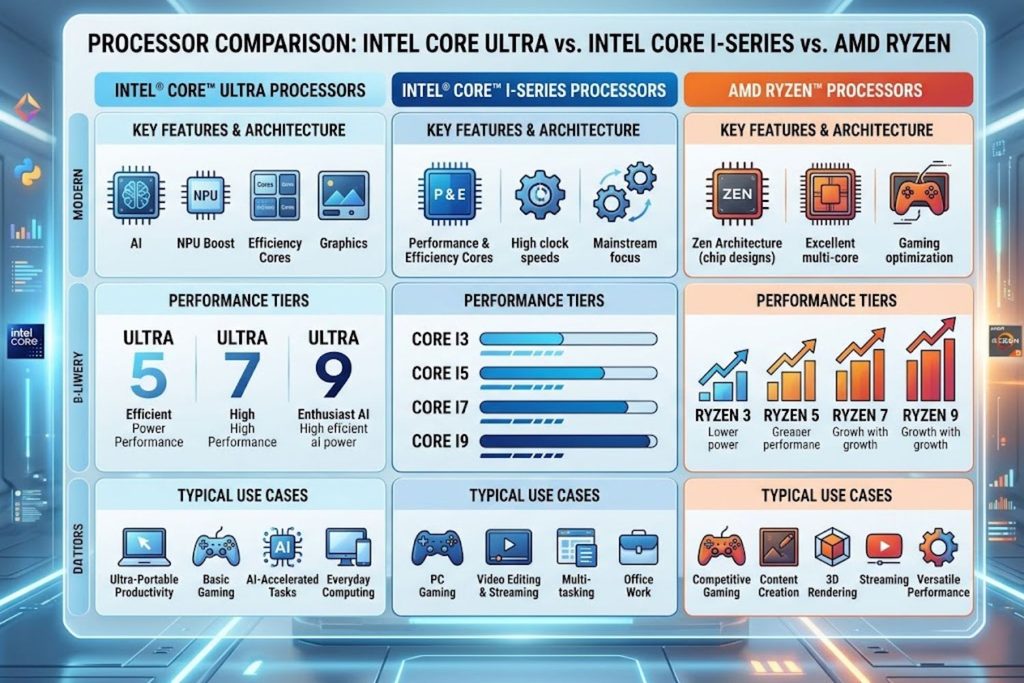
“Processor” is vague. What matters is the actual chip generation.
Intel Current Generations (2024-2025):
- Core Ultra (Meteor Lake, Lunar Lake) — Latest, high efficiency
- Core i3/i5/i7/i9 — Traditional naming, good performance
- Older than Core Ultra? Getting dated
AMD Current Generations (2024-2025):
- Ryzen 7 9000 series (Zen 5) — Excellent efficiency and performance
- Ryzen 5 9000 series — Solid mid-range option
- Older than Ryzen 9000? Consider battery life impact
The Real Question: How much CPU power do you actually need?
Most people work within a processor’s performance ceiling. A Core i5 or Ryzen 5 handles office work fine. The difference between i5 and i7 appears when you:
- Work with 40+ browser tabs simultaneously
- Compile code or render video
- Run heavy data processing
- Do sustained creative work (8+ hours daily)
For typical office work: Core i5 or Ryzen 5 is sufficient. Don’t overpay for i7/Ryzen 7 unless your workflow demands it.
Step 4 — RAM Requirements: When 8GB Isn’t Enough
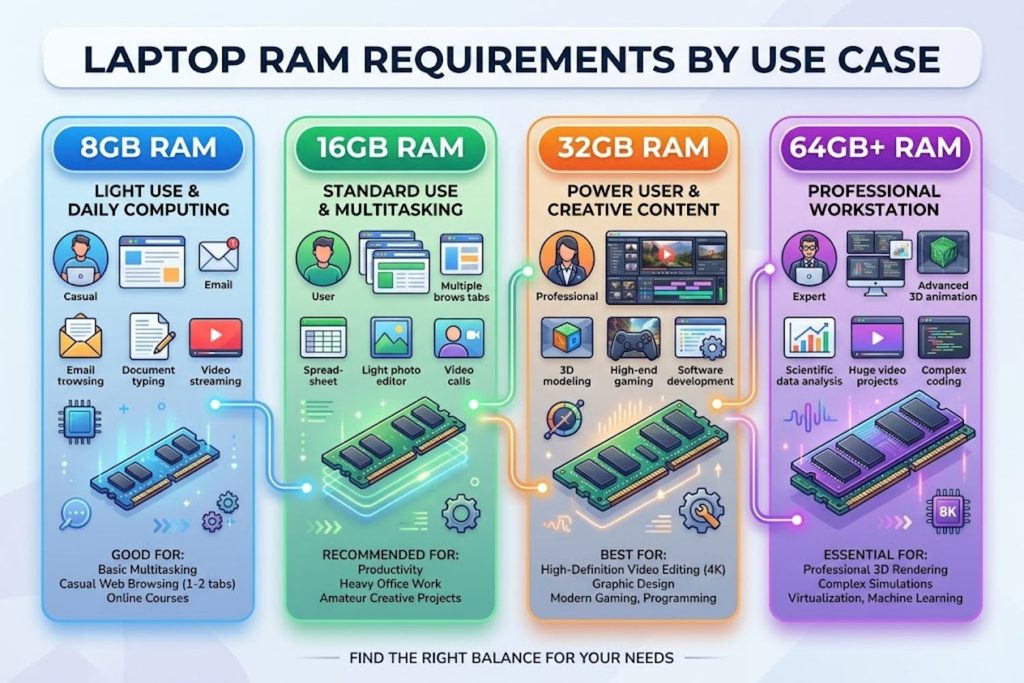
RAM is the easiest specification to misunderstand.
8GB RAM: Handles light productivity and web browsing, but struggles with:
- 30+ browser tabs
- Simultaneous photo editing + web work
- Video conferencing + document work
- Any creative software running in the background
16GB RAM: Handles moderate productivity and light creative work. Increasingly the practical minimum for 2025, especially if you plan to keep the laptop 4+ years.
32GB RAM: Required for:
- Sustained video editing (4K especially)
- 3D rendering or CAD work
- Data science and large datasets
- Professional development (compiling, containerization)
64GB+ RAM: Specialized workstations. Not needed for consumer tasks, period.
The critical insight: upgrading RAM later is either impossible or expensive on modern thin-and-light Dell models. Choose correctly now.
Step 5 — Storage Decisions: SSD vs. HDD Trade-offs
Modern Dell laptops use SSDs exclusively (hard drives are nearly extinct).
The question is capacity:
256GB SSD: Tight for most users. Handles:
- Windows OS (30GB) + software (~50GB) = 80GB used immediately
- Leaves ~176GB for files
- Problematic if you edit video or store large photo libraries
512GB SSD: The practical minimum for 2025. Most users are comfortable with this capacity.
1TB SSD: Recommended if you:
- Edit video or audio
- Maintain large photo libraries
- Do professional development
2TB+ SSD: Only needed for workstations or specialized use.
Pro tip: Never rely on cloud storage as your primary solution for missing capacity. Download speeds are unreliable, latency matters, and offline work is impossible.
Step 6 — Display Quality: Why 1080p Isn’t Universal
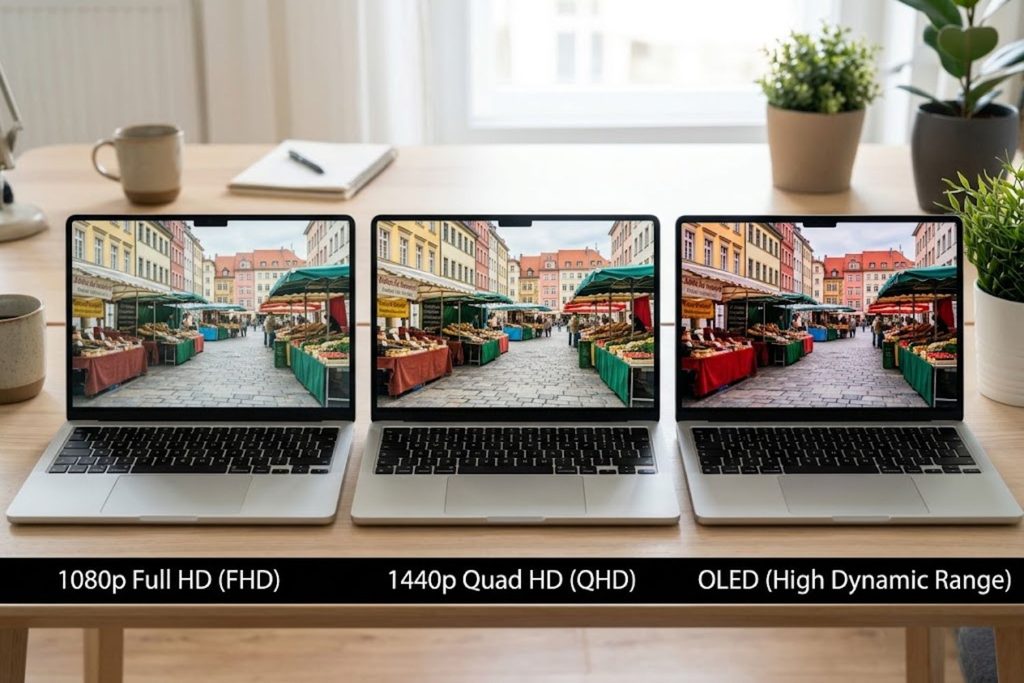
Display quality directly impacts productivity and eye strain. This is where budget laptops often disappoint.
| Resolution | Pixel Density (13″) | Use Case | Productivity Impact |
|---|---|---|---|
| 1080p (FHD) | 166 ppi | Budget options | Text feels slightly soft; acceptable |
| 1440p (QHD) | 225 ppi | Standard professional | Crisp text; noticeably better |
| OLED 1440p | 225 ppi + contrast | Premium options | Superior color, infinite blacks |
| 4K | 326 ppi | Rare on laptops | Overkill; battery drain not worth it |
Brightness matters: Budget displays often max out at 250 nits (candles worth of brightness). Outdoor use becomes difficult. Premium displays reach 400+ nits.
Color accuracy matters for creative work: If you edit photos or video, confirm the display color gamut. Adobe RGB or DCI-P3 coverage matters; sRGB-only displays are limiting.
Refresh rate matters for gaming: Gaming on a 60Hz display versus a 144Hz display is immediately noticeable. But for productivity, 60Hz is fine.
Dell Series Deep Dive & Real Recommendations
Dell XPS: Premium Performance for Professionals
What XPS Gets Right:
The XPS series dominates the premium market because Dell prioritizes visible quality. From the machined aluminum chassis to the edge-to-edge display, the XPS 13 or 14 feels premium.
More importantly, the engineering is sound. Thermal management is excellent (runs cool and quiet), keyboard travel is satisfying, and trackpad responsiveness is top-tier.
XPS 13: Ultraportable perfection.
- Weight: 2.5-3 lbs
- Processor: Intel Core Ultra 7 (or Snapdragon)
- Display: 13.4″ OLED (2560×1600)
- RAM: 16GB-32GB options
- Use case: Mobile professionals, writers, developers
- Sweet spot price: $1,300-$1,500
- Verdict: Best Windows ultrabook in 2024-2025
XPS 14: The goldilocks size.
- Weight: 3.5 lbs
- Processor: Intel Core Ultra 7 (Meteor Lake)
- Display: 14″ OLED (2880×1800)
- Dedicated GPU: RTX 4050 option
- Use case: Designers, lightweight video editors
- Sweet spot price: $1,400-$1,700
- Verdict: Best all-around XPS model
XPS 16: Performance workstation.
- Weight: 4.5 lbs
- Processor: Intel Core Ultra 7 or Core i9
- Display: 16″ OLED (3840×2400) or 4K MINI-LED
- Dedicated GPU: RTX 4070-4080 options
- RAM: Up to 64GB
- Use case: Video editors, 3D artists, data scientists
- Sweet spot price: $1,800-$2,200
- Verdict: Best value pro laptop from Dell
XPS 17: Maximum screen real estate.
- Weight: 5.3 lbs
- Processor: Intel Core i9 (K-series)
- Display: 17″ OLED (3840×2400)
- Dedicated GPU: RTX 4080 standard
- RAM: Up to 96GB
- Use case: Professional video editing, animation, CAD
- Sweet spot price: $2,200-$2,600
- Verdict: Portable workstation for serious creators
XPS Buying Reality Check:
XPS models justify their premium through design and reliability. But you’re paying for materials and manufacturing precision. If your use case doesn’t benefit from OLED display or premium build quality, an Inspiron 16 Plus performs nearly identically at $700 less.
Buy XPS if:
- You work in design/creative fields (visual quality matters)
- You value build quality and longevity
- Portability is important
- You’ll keep the laptop 5+ years
Skip XPS if:
- You’re price-conscious and need a workhorse
- Your work is purely office-based
- You primarily work at a desk
Dell Inspiron: Where Most People Find the Right Fit
What Inspiron Gets Right:
Inspiron is the working person’s laptop. You sacrifice premium materials (plastic vs. aluminum) but maintain solid performance. The Inspiron line is deep—seven distinct sub-series—so finding the right model requires understanding the tiers.
Inspiron 3000 Series: Ultra-budget.
- Price range: $299-$599
- Processor: AMD Ryzen 3/5 or Intel Core 3/5
- RAM: 4-8GB
- Storage: 256GB-512GB
- Verdict: Acceptable for students and light browsing. Expect slowdowns after 2-3 years.
Inspiron 5000 Series: Entry-level productivity.
- Price range: $449-$749
- Processor: AMD Ryzen 5 or Intel Core 5
- RAM: 8GB standard, upgradeable to 16GB
- Storage: 512GB SSD
- Battery life: 8-10 hours typical
- Verdict: Solid choice for office workers and general productivity. Good upgrade path.
Inspiron 7000 Series: Mid-range creators.
- Price range: $699-$1,099
- Processor: AMD Ryzen 7 or Intel Core Ultra 5/7
- RAM: 16GB standard
- Storage: 512GB-1TB SSD
- Display options: FHD or OLED
- Verdict: Best value for photo editing, writing, and moderate content creation.
Inspiron 14/16 Plus: The sweet spot.
- Price range: $799-$999
- Processor: Intel Core Ultra 5/7 or Snapdragon X Plus
- RAM: 16GB-32GB
- Storage: 512GB-1TB SSD
- GPU: Snapdragon’s integrated GPU or Intel Iris Xe
- Display: Up to OLED options
- Weight: 3.5-4 lbs (portable)
- Verdict: Probably the right choice if you’re reading this. Excellent performance, reasonable price, good build quality.
Inspiron Buying Reality Check:
The Inspiron line is confusing because each sub-series overlaps. The 7000 and the 14 Plus, for example, are nearly identical. Here’s the simple rule:
If budget is your primary concern: Pick the lowest-priced model with 16GB RAM and 512GB SSD. Processor generation matters less than you think.
If you want longevity: Jump to Inspiron 14/16 Plus. The build quality improvement justifies the $200-300 premium.
Dell Latitude: Business-Grade Reliability & Longevity
What Latitude Gets Right:
Corporate IT managers standardize on Latitude because Dell supports these models for 5+ years with consistent driver updates, firmware patches, and warranty support. Latitude laptops are engineered for reliability over flash.
Typical features:
- Spill-resistant keyboard
- Docking station support (crucial for enterprise deployments)
- Enhanced security features (TPM 2.0, fingerprint readers standard)
- 7-10 year hardware support commitments
Latitude 3000 Series: Entry business.
- Price range: $599-$899
- Use case: Data entry, office work, light productivity
- Build quality: Adequate for office use
Latitude 5000 Series: Standard business laptop.
- Price range: $899-$1,299
- Use case: General business users, office workers
- Build quality: Good; handles 4-5 years daily use
- Verdict: Safe corporate choice
Latitude 7000 Series: Premium business machine.
- Price range: $1,199-$1,699
- Use case: Executives, frequent travelers
- Build quality: Premium materials; designed for 5+ years
- Verdict: Best for users wanting business reliability + good performance
Latitude Buying Reality Check:
Buy Latitude if you work for a corporation that standardizes on these systems, need long-term support, or prioritize reliability over features. For personal/home use, Inspiron offers better value.
Dell G-Series: Gaming on a Budget
What G-Series Gets Right:
Gaming laptops require expensive components (dedicated GPU, high-refresh display, robust cooling). The G-Series delivers gaming capability without paying Alienware’s premium.
Typical G-Series specs:
- 15-17″ displays with 144-165Hz refresh rates
- RTX 4060-4070 GPUs (high settings, 1440p gaming)
- Intel Core i7 or AMD Ryzen 7
- Strong thermal management (cooling is important)
- Speaker quality (gaming laptops often have decent speakers)
G15 (15.6″): Entry gaming laptop.
- Price range: $899-$1,199
- GPU: RTX 4060 (high settings, 1080p; medium 1440p)
- Processor: Intel Core i7 or Ryzen 7
- Verdict: Handles most modern games acceptably
G16 (16″): Sweet spot for gaming value.
- Price range: $1,099-$1,399
- GPU: RTX 4070 (high settings, 1440p; playable 4K)
- Processor: Intel Core i9 or Ryzen 9
- Display: 165Hz QHD
- Verdict: Best gaming laptop for the price
G Series Buying Reality Check:
G-Series gaming laptops are compromises. They’re not as quiet as XPS models. They’re heavier and thicker. Battery life is acceptable but not great.
But they deliver gaming performance at consumer pricing. If gaming is your primary use case, G-Series is where most people find the right balance.
Alienware: Gaming Powerhouses (Premium)
What Alienware Gets Right:
Alienware represents the bleeding edge of gaming laptop engineering. These are systems built to run demanding games at high frame rates, with industrial design to match.
You pay a premium. But if gaming is serious for you, Alienware’s engineering justifies the cost.
Typical specs:
- Ultra-high-refresh displays (240Hz+)
- Top-tier GPUs (RTX 4080, RTX 4090)
- Liquid cooling or advanced vapor chamber systems
- Pro-grade power delivery (power management for consistency)
Alienware m16: Premium gaming laptop.
- Price range: $1,899-$2,499
- GPU: RTX 4080
- Processor: Intel Core i9
- RAM: Up to 32GB
- Display: 16″ 240Hz QHD or 4K
- Verdict: For competitive gamers wanting highest frame rates
Alienware x18 R1: Maximum performance.
- Price range: $2,599-$3,399
- GPU: RTX 4090
- Processor: Intel Core i9 (K-series)
- RAM: Up to 64GB
- Display: 18″ 480Hz or 4K
- Verdict: For esports competitors or extreme performance seekers
Alienware Buying Reality Check:
Alienware systems are legitimate if gaming is your primary use case and you have the budget. They’re not “better” for office work—they’re overkill. You pay for extreme performance and engineering precision that most users won’t need.
The Hidden Specifications That Actually Matter
Beyond processor and RAM, certain specifications dramatically affect real-world experience.
GPU Decisions: Integrated vs. Dedicated Graphics
Integrated Graphics (Intel Iris Xe, AMD Radeon):
Modern integrated graphics handle:
- 1080p video editing (single-track)
- Light photo editing
- Everyday tasks
- Light gaming (esports titles, older AAA games)
- Programming and development
Dedicated Graphics (NVIDIA RTX 4050, 4070, 4080):
Required for:
- 4K video editing or rendering
- 3D modeling or CAD
- Serious gaming (1440p+)
- Heavy content creation
- Professional visualization
Cost Impact: Dedicated GPU adds $300-600 to price. Only add if your workflow actually uses it.
Real talk: If you’re not doing video editing or 3D work, don’t pay for dedicated GPU. Marketing makes it sound necessary. It isn’t.
Cooling Systems & Thermal Management
Modern gaming and creator laptops generate significant heat. How they manage it matters.
Vapor Chamber Cooling: Advanced thermal spreaders that distribute heat evenly. Quieter, more efficient. Found on premium models.
Traditional Dual-Fan Design: Standard on most laptops. Works fine but can be audible under load.
Liquid Cooling: Rare on consumer laptops; primarily in Alienware. Overkill for most users.
Why it matters: A poorly cooled laptop throttles performance under sustained load. It also makes noise. If you value quiet operation, thermal management matters.
Port Configuration & Peripheral Compatibility
This is where real-world frustration happens.
Ports You Actually Need:
- USB-A (at least one): legacy peripheral compatibility
- USB-C with Power Delivery (at least two): future-proofing
- HDMI or DisplayPort: external monitor connection
- Headphone jack: essential for work calls
What Not to Do: Don’t buy a laptop with USB-C only if you have existing USB-A peripherals. Adapters work but add friction.
Dell Port Reality: Most XPS models go minimal (2 USB-C). Inspiron and Latitude models include more ports. Consider your peripherals before buying.
Battery Chemistry & Real-World Longevity
Modern lithium-polymer batteries degrade over time. Real-world longevity varies:
Typical Battery Degradation:
- After 1 year: 95-97% capacity
- After 3 years: 85-90% capacity
- After 5 years: 75-80% capacity
How to Extend Battery Life:
- Charge to 80%, discharge to 20% when possible
- Avoid sustained high heat
- Update BIOS regularly (Dell issues battery optimization patches)
- Enable battery saver mode on modern Windows
Warranty Reality: Most Dell batteries are covered for 1 year. Degradation after that is normal and not covered.
Common Dell Laptop Buying Mistakes (And How to Avoid Them)
Mistake #1 — Ignoring Future Scalability
You buy a laptop with 8GB RAM and 256GB SSD for $400. Eighteen months later, you need 32GB RAM and 1TB SSD for a new project.
Can you upgrade?
- XPS models: RAM is soldered (not upgradeable). SSD is replaceable but difficult.
- Inspiron models: RAM is often upgradeable; SSD always is.
- Latitude models: Designed for upgrades; both RAM and SSD accessible.
The Fix: If there’s any chance you’ll need more RAM in the future, buy it now. Upgrade costs are steep, and soldered RAM means replacing the entire motherboard.
Mistake #2 — Focusing Only on RAM, Ignoring CPU
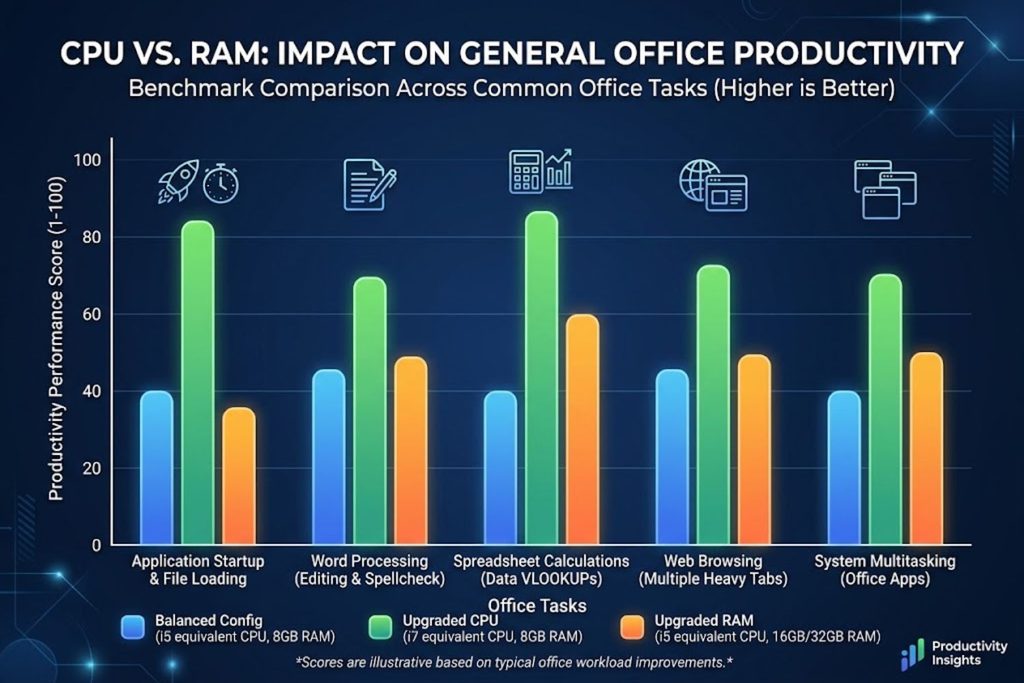
You see two laptops: one with 16GB RAM and Core i5; another with 8GB RAM and Core i7.
Common thinking: “More RAM is better.”
Actually: The Core i7 laptop with 8GB RAM will outperform the Core i5 laptop with 16GB RAM for most workloads. Processor speed matters more than RAM capacity for general productivity.
The Fix: CPU first, then RAM. Don’t prioritize RAM just because the number is bigger.
Mistake #3 — Underestimating Display Impact on Productivity
You buy a budget Inspiron with 1080p FHD display and 250 nits brightness.
After a month working on the laptop, your eyes hurt. Text looks soft. Working outdoors is impossible.
You realize you made a mistake, but returning is too late.
The Fix: Try the laptop in person if possible. Spend 15 minutes typing and reading. Brightness and resolution have enormous impact on daily experience.
Mistake #4 — Neglecting Warranty & Support Options
Dell’s standard warranty is one year, parts and labor.
Extended warranties cost $150-400 but cover hardware failures up to 5 years. For business-critical laptops, this matters. For casual users, probably not worth it.
The Fix: Read the warranty fine print before buying. Accidental damage protection exists but isn’t standard.
Mistake #5 — Not Testing Keyboard/Trackpad Before Purchase
You receive the laptop and discover the keyboard layout feels cramped or the trackpad is unresponsive.
Keyboards are highly personal. What feels great to one person feels cramped to another.
The Fix: If possible, test the exact model in a store before buying online. This 10-minute test prevents months of frustration.
Real-World Performance Benchmarks
Let’s move past marketing speak to real performance.
Office & Productivity Tasks
Benchmark: 50 browser tabs + Google Docs + Slack + Zoom call simultaneously
| Processor | RAM | Result | Cost |
|---|---|---|---|
| Core i5 + 8GB | 8GB | Occasional freezes; Slack lags | $500 |
| Core i5 + 16GB | 16GB | Smooth; no noticeable lag | $700 |
| Core i7 + 16GB | 16GB | Smooth; fast tab switching | $900 |
| Core i9 + 32GB | 32GB | Effortless; no difference from i7 | $1,400 |
Verdict: For office work, Core i5 + 16GB is the practical ceiling. More power doesn’t translate to faster email or web work.
Photo & Video Editing (4K and Beyond)
Benchmark: Editing 4K video timeline with color grading
| GPU | CPU | RAM | Result |
|---|---|---|---|
| Integrated | i5 | 16GB | Real-time playback impossible; renders slowly |
| RTX 4050 | i7 | 16GB | Playable; some effects require waiting |
| RTX 4070 | i7 | 32GB | Near-real-time; smooth workflow |
| RTX 4080 | i9 | 32GB | Real-time playback; no waiting |
Verdict: RTX 4070 + 32GB RAM is the practical minimum for serious video editing. Below that, you’ll spend more time waiting than creating.
Gaming Performance by Series
Benchmark: Modern AAA games (Star Citizen, Cyberpunk 2077)
| Series | GPU | 1080p (High) | 1440p (High) | 4K (Medium) |
|---|---|---|---|---|
| G15 | RTX 4060 | 90-120 fps | 50-60 fps | Not playable |
| G16 | RTX 4070 | 140+ fps | 90-110 fps | 40-50 fps |
| Alienware m16 | RTX 4080 | 240+ fps | 144+ fps | 90+ fps |
Verdict: RTX 4070 is the sweet spot for 1440p gaming. RTX 4060 struggles at high settings; consider medium settings instead.
Programming & Development Workloads
Benchmark: Compiling large projects, containerization, development environment responsiveness
| CPU | RAM | SSD | Result |
|---|---|---|---|
| Core i5 | 16GB | 512GB | Compilation takes 2-3 minutes; acceptable |
| Core i7 | 16GB | 512GB | Compilation takes 1-2 minutes; good |
| Core i7 | 32GB | 1TB | Compilation <1 minute; Docker/VM smooth |
| Core i9 | 32GB | 2TB | Professional workstation; no waiting |
Verdict: Core i7 + 16GB + 512GB is sufficient for most development. Jump to 32GB if you run virtual machines or large datasets.
Total Cost of Ownership: Beyond the Price Tag
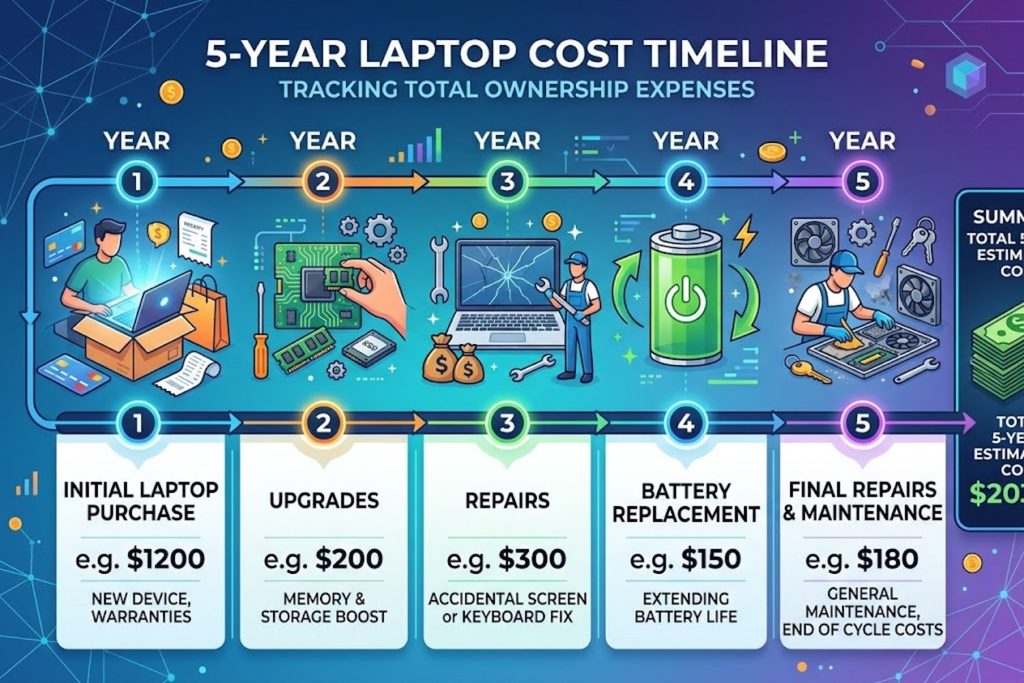
The laptop price tag is just the beginning.
Warranty & Support Costs
Standard Dell Warranty: 1 year, parts and labor. Free technical support.
Extended Warranty Options:
- Pro Support Plus: $200-400. Adds 4 more years support, on-site technician.
- Accidental Damage Protection: $100-250. Covers drops, spills, damage.
For business users: Extended warranty pays for itself with just one hardware failure.
For personal users: Probably not essential unless you’re clumsy.
Upgrade & Repair Expenses
Common upgrades after purchase:
- RAM upgrade: $80-150 (labor at Dell or Best Buy included)
- SSD upgrade: $100-250 (self-installable on most models)
- Battery replacement: $150-300
Repair costs (out of warranty):
- Screen replacement: $300-600
- Motherboard repair: $500-1,200
- Keyboard replacement: $150-300
How to Minimize:
Buy enough specs upfront. Upgrading later is expensive.
Software & Peripheral Compatibility
Windows 11 Professional vs. Home:
Standard Dell laptops ship with Windows 11 Home. If you need Pro (for VPN, group policy, or corporate features), Microsoft charges $100 for an upgrade.
Peripheral Compatibility:
Factor in costs for external monitors, mice, docking stations, USB hubs. Budget $200-500 for a complete setup.
Featured Models Comparison Table (2024-2025)
| Model | Price | Processor | RAM | Storage | Display | GPU | Battery | Best For |
|---|---|---|---|---|---|---|---|---|
| Inspiron 14 | $499 | Ryzen 5 | 8GB | 256GB | FHD | Integrated | 8 hours | Budget office work |
| Inspiron 16 Plus | $799 | Core Ultra 5 | 16GB | 512GB | FHD | Integrated | 10 hours | Value productivity |
| XPS 13 | $1,299 | Core Ultra 7 | 16GB | 512GB | OLED | Integrated | 12 hours | Premium ultrabook |
| XPS 14 | $1,499 | Core Ultra 7 | 16GB | 512GB | OLED | RTX 4050 option | 10 hours | Design & editing |
| G16 | $1,199 | Core i7 | 16GB | 512GB | 165Hz QHD | RTX 4070 | 6-7 hours | Gaming value |
| XPS 15 | $1,799 | Core i7 | 16GB | 512GB | OLED | RTX 4070 | 12 hours | Video editing |
| Latitude 5450 | $1,099 | Core i5 | 16GB | 512GB | FHD | Integrated | 14 hours | Business users |
| XPS 16 | $1,999 | Core i7 | 32GB | 1TB | OLED | RTX 4080 | 12 hours | Pro workstation |
Frequently Asked Questions About Dell Laptops
1. How much RAM do I actually need?
8GB is the absolute minimum for 2025. 16GB is the practical standard. 32GB if you edit video or run heavy software.
If there’s any doubt, buy 16GB. You can’t upgrade easily, and regret is expensive.
2. Should I buy a Dell laptop in-store or online?
Buy in-store if: You want to test the keyboard, trackpad, and display before committing. Spend 15 minutes typing on the actual model.
Buy online if: You’ve already tested the model elsewhere or you’re confident in your choice. Online prices are often 10-15% better than retail.
3. What’s the lifespan of a Dell laptop?
Budget models (Inspiron 3000): 3-4 years before noticeable slowdowns
Mid-range models (Inspiron 14 Plus, XPS 13): 5-6 years with consistent performance
Premium/business models (XPS 16, Latitude): 6-7+ years if well-maintained
Battery longevity: 3-5 years typical before noticeable degradation
4. Are Dell XPS laptops really worth the premium?
If you work in creative fields: Yes. Display quality and build quality matter for your productivity.
If you’re office-based: Probably not. An Inspiron 14 Plus performs nearly identically at $700 less.
5. Can I upgrade RAM and storage on a Dell laptop?
Depends on the model:
- XPS 13: RAM is soldered (not upgradeable); SSD is replaceable
- Inspiron 14: RAM is often upgradeable; SSD always is
- Latitude: Both RAM and SSD are upgradeable
- Gaming laptops: Highly upgradeable
Check the exact model before buying if upgradeability matters.
6. What’s the difference between Intel Core Ultra and traditional Core i5/i7?
Core Ultra represents Intel’s latest generation with improved efficiency and AI acceleration features.
For real-world performance, Core Ultra 7 ≈ Core i7. The main difference is power consumption (better battery life).
7. Is a gaming laptop good for general use?
Yes, but with caveats:
Advantages: Powerful processor, high-refresh display, excellent performance
Disadvantages: Heavier, louder under load, shorter battery life, more expensive
If you game occasionally but use the laptop for office work mostly, a gaming laptop is overspecified. Better to buy a productivity laptop.
8. Should I get AppleCare or Dell extended warranty?
For business users: Extended warranty pays for itself with one hardware failure.
For personal/casual users: Standard warranty is usually sufficient. You can add AppleCare-equivalent later if needed.
9. How does battery life compare across Dell models?
Ultrabooks (XPS 13, Latitude 5000): 12-14 hours typical
Mid-range (Inspiron 16 Plus): 10-12 hours typical
Gaming laptops: 6-8 hours typical
Creator laptops (XPS 16): 10-12 hours typical
Note: Battery life assumes light productivity. Gaming, video editing, and sustained high load reduce this significantly.
10. What’s the best Dell laptop for students?
Budget: Inspiron 14 ($500-700) — handles coursework, web-based tools, Microsoft 365
Better: Inspiron 16 Plus ($800-1000) — room for future projects, better display
Best overall value: Dell Inspiron 14 with 16GB RAM and 512GB SSD
Upgrade to XPS 13 only if studying design, video, or other creative fields requiring premium display.
11. Are refurbished Dell laptops worth buying?
Refurbished Dell laptops (certified by Dell) are usually good value. They include warranty and have been tested.
Key checks:
- Confirm warranty period
- Verify battery health
- Check return policy
Generally 20-30% cheaper than new, with minimal risk if purchased from Dell directly.
12. Can I use a Dell laptop for video gaming?
Yes, depending on the model:
- Inspiron/XPS with integrated GPU: Casual gaming only (League of Legends, Valorant, Fortnite low settings)
- G-Series gaming laptop: High settings, 1440p, modern AAA games
- Alienware: Maximum settings, high frame rates, competitive gaming
Entry-level gaming laptops (G15 with RTX 4060) handle gaming but are mid-tier. Professional gamers choose RTX 4070 minimum.
13. What are the most common Dell laptop problems?
Most reported issues:
- Battery not charging (software issue, usually)
- Keyboard/trackpad responsiveness (drivers)
- Thermal performance (cleaning vents helps)
- Speaker quality (common design decision, not a defect)
Actual hardware failures are uncommon on XPS, Latitude, and newer Inspiron models.
14. How often should I upgrade my Dell laptop?
If it still handles your workload: Don’t upgrade yet.
Upgrade when:
- Software (Adobe, coding tools) runs slowly
- Battery drops below 50% capacity
- Laptop can’t handle your primary use case
Most people keep laptops 4-6 years before upgrading. Premium models (XPS, Latitude) are worth keeping 5-7 years.
15. Is a 2-in-1 Dell laptop worth buying?
2-in-1 laptops (Inspiron 2-in-1, Latitude 2-in-1) convert between laptop and tablet.
Advantages: Flexible form factor, touchscreen included
Disadvantages: Heavier than regular laptops, less rigid, trackpad is smaller
Worth it only if you specifically use tablet mode. Most people regret the trade-off in weight and rigidity.