Most people plug in their headphones without thinking twice about the connector on the end. But that small piece of metal is more important than you’d think. It’s the bridge between your digital device and your ears—and it’s been evolving rapidly.
The question “which USB connector should I use for headphones?” is more relevant now than it’s ever been. Devices are ditching the 3.5mm jack. Manufacturers are moving to USB-A, USB-C, and other digital standards. Professional setups require understanding audio transmission protocols. And if you’ve ever had a headphone connector USB issue, you know how frustrating incompatibility can be.
This guide covers everything you need to know about USB headphone connector USB—from the technical details that matter to practical advice you can use today.
What Is Headphone Connector USB?
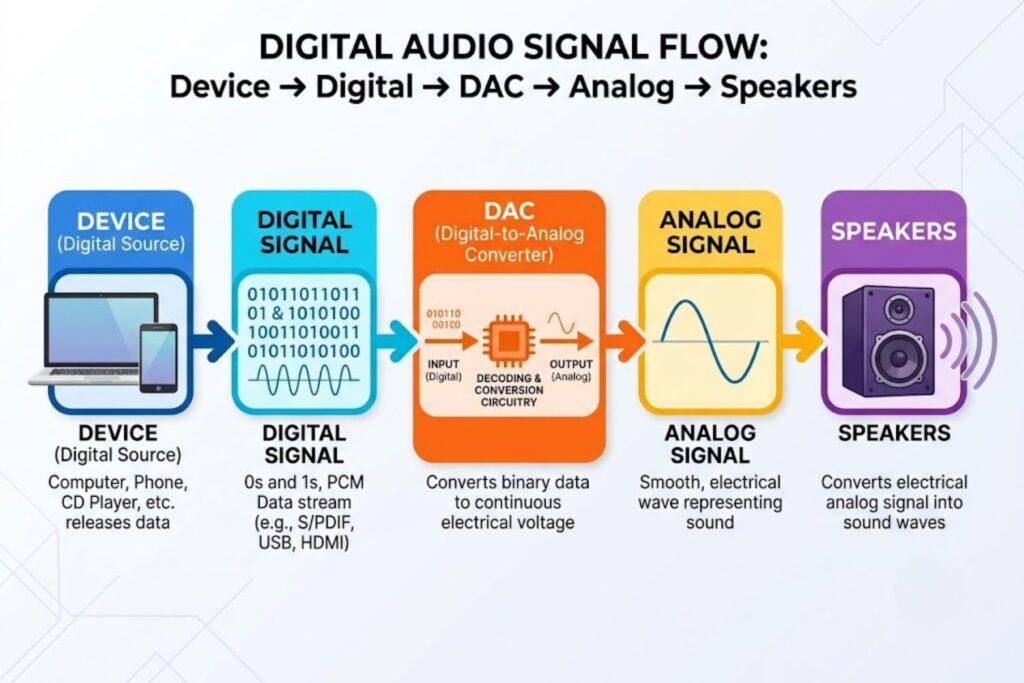
A Headphone connector USB is a digital audio interface that transmits sound data from your device to your headphones using USB protocol instead of traditional analog signals. Unlike the classic 3.5mm headphone jack, which carries analog audio directly, USB connectors handle digital data that gets converted to sound through a Digital-to-Analog Converter (DAC).
Here’s the key difference: a 3.5mm jack is purely analog. USB is purely digital. This shift from analog to digital audio represents one of the biggest changes in personal audio over the past decade.
How USB Audio Transmission Works
When you plug USB headphones into your device, here’s what happens behind the scenes:
Step 1: Digital Signal Processing Your device sends audio data as digital information through the USB connection. This data follows the USB Audio Device Class specification (established by the USB Implementers Forum).
Step 2: DAC Conversion The headphones (or an external converter) contain a DAC chip that converts the digital signal into analog audio. This happens in real-time, producing the sound you hear.
Step 3: Amplification Many USB headphones include a built-in amplifier. This gives them more control over volume and sound quality than passive analog headphones.
Step 4: Transmission to Drivers The sound travels through the headphone drivers (the speakers inside) to your ears.
The advantage? Digital signals are immune to the interference and quality loss that can affect analog audio cables, especially over longer distances. This is why professional studios often prefer digital audio transmission.
Why USB Replaced 3.5mm in Modern Devices
Apple removed the headphone jack from the iPhone in 2016. Google followed with Pixel phones. Samsung removed it from flagship models. Even many laptops and tablets ditched the 3.5mm jack entirely.
The reasons make technical sense:
Space Efficiency: USB ports take up less space than a dedicated headphone jack, giving manufacturers more room for other components or thinner devices.
Versatility: A single USB port can handle audio, charging, data transfer, and video—all through one connector. A 3.5mm jack does one thing: audio output.
Quality Control: Digital audio transmission reduces interference and signal degradation. It’s more reliable over time.
Power Management: USB can provide power directly to headphone amplifiers and active noise cancellation systems.
But here’s the honest truth: this transition created real inconvenience. Millions of people had perfectly good 3.5mm headphones that suddenly didn’t work with their new devices. That’s why adapters and USB-C headphones became necessary purchases.
The Role of DAC Chips in USB Headphones
The DAC chip is the unsung hero of USB audio. It’s a tiny piece of electronics that does something remarkable: it converts the digital 1s and 0s flowing through USB into analog signals that create sound waves.
Not all DAC chips are equal. Budget USB headphones might use a basic DAC that supports only 16-bit/48kHz audio (the standard for streaming services like Spotify). Professional headphones use high-quality DACs supporting 24-bit/192kHz resolution or higher, preserving every detail of studio recordings.
Think of it like this: a cheap DAC is like watching a movie on a standard definition TV. A quality DAC is like watching on 4K. The source material might be the same, but the difference is noticeable.
Types of Headphone Connector USB (The Technical Breakdown)
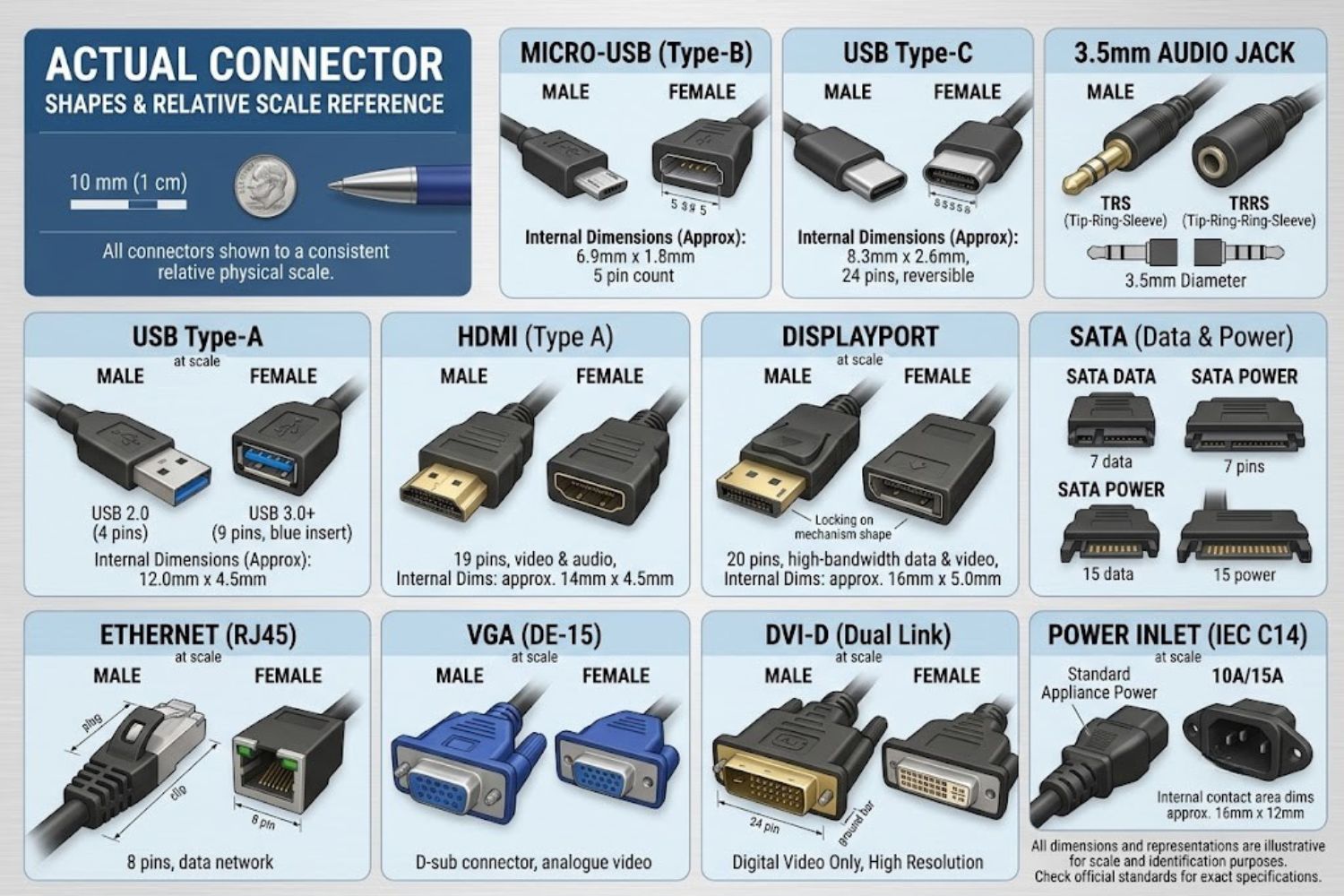
Let’s talk connector types. If you’re shopping for USB headphones or troubleshooting connection issues, knowing these distinctions is essential.
USB Type-A Connectors for Headphones
USB-A is the rectangular connector you’ve seen since the 1990s. It’s on every desktop computer, most laptops, and countless peripherals. When manufacturers first added audio capabilities to USB, USB-A was the obvious choice.
Specifications:
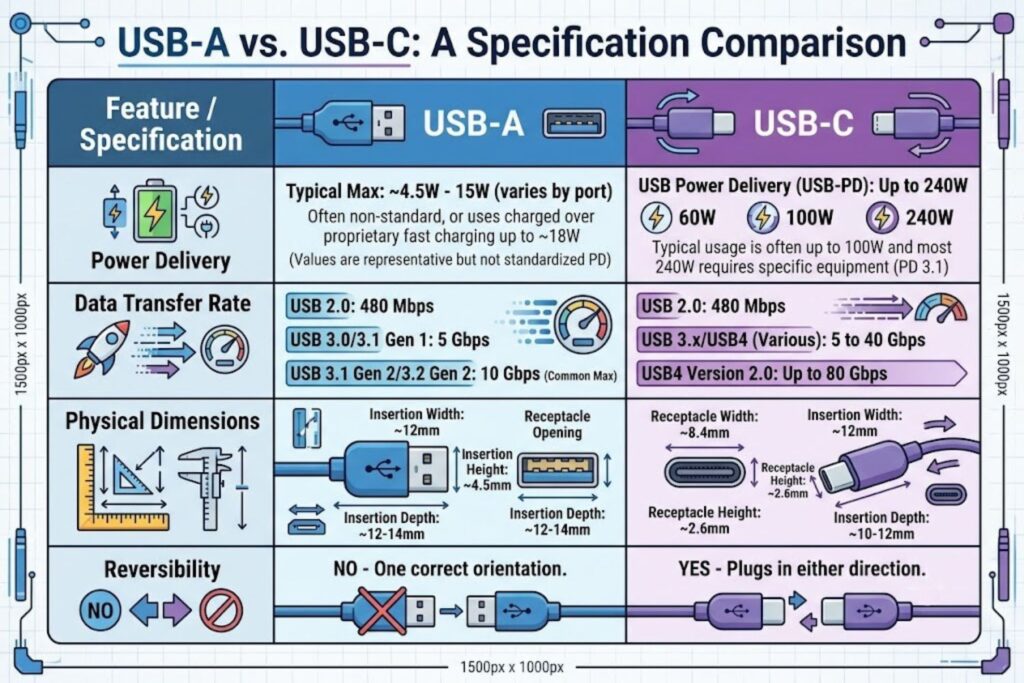
- Rectangular shape, approximately 12.8mm × 4.8mm
- Most common type on computers and tablets
- Older compatibility standard
- No power delivery (in most headphone applications)
USB-A to 3.5mm adapters are still widely available, making them a practical bridge for legacy audio systems. Many offices and studios still use USB-A connected headsets because existing infrastructure supports them.
Best Use Cases for USB-A
USB-A headphones or adapters work best when:
- Using older desktop computers or workstations
- Connecting to gaming consoles (PS4, Xbox One)
- Setting up in call centers or office environments
- Working with legacy professional audio equipment
- You have multiple USB-A ports available
Compatibility Considerations
The main limitation: newer devices are phasing out USB-A. Most modern laptops, tablets, and phones rely on USB-C. If you buy USB-A headphones today, you’ll likely need adapters in a few years.
USB Type-C Connectors for Headphones
USB-C is the present and future of device connectivity. It’s thinner, reversible (you can plug it in either way), and carries much more power than USB-A.
Specifications:
- Small, oval-shaped connector, approximately 8.4mm × 2.6mm
- Reversible design (no more choosing the correct orientation)
- Supports up to 100W power delivery
- Higher data transfer rates than USB-A
- Standard on modern smartphones, tablets, and laptops
Why USB-C Is the Future Standard
The advantages are clear:
Reversibility: USB-A only works one way. USB-C works either direction. This eliminates the universal frustration of choosing the wrong side.
Power Delivery: USB-C can provide significant power to headphone amplifiers and active noise cancellation systems. USB-A simply can’t match this capability.
Thinness: This allowed phone manufacturers to remove headphone jacks while keeping device thickness minimal.
Standardization: Every new major device manufacturer—Apple, Google, Samsung, Microsoft—is standardizing on USB-C. Investing in USB-C headphones means better future compatibility.
Advantages Over USB-A
Beyond the technical specs, USB-C headphones offer practical benefits:
- Work with current flagship devices
- Future-proof investment
- Enable wireless charging and wired audio simultaneously
- Smaller, more durable connectors
- Better power management for advanced features
Mini/Micro USB Connectors
You’ll encounter these less frequently now, but they’re still around, especially on wireless headphones’ charging cases and some budget headsets.
Mini USB: Older connector, roughly 7mm × 2.65mm. Found on some devices from the mid-2000s to 2010s.
Micro USB: Smaller than mini, approximately 6mm × 1.8mm. Standard on Android devices before USB-C adoption.
When You’ll Encounter These
- Charging cases for truly wireless earbuds
- Budget gaming headsets
- Older wireless headphones (2010-2015 era)
- Some professional audio equipment
- Legacy studio equipment
While USB-C is replacing these, compatibility with micro-USB devices is still important for users with older equipment.
USB-B Connectors (Studio & Professional Use)
This is the weird-looking square connector you see on printers and professional audio equipment. For headphones, USB-B is rare—it’s almost exclusively found in high-end studio recording equipment and professional monitoring headsets.
USB-B isn’t something most consumers will encounter with headphones. If you’re building a professional audio setup with studio monitors or professional headphones, you might see it. It’s larger and more robust than consumer connectors, designed for equipment that stays in one place.
USB Headphones vs. Traditional 3.5mm: A Technical Comparison
This comparison matters because it affects your buying decision and determines whether you’ll need adapters.
Audio Quality Differences
Digital (USB) Advantage: Digital signals don’t degrade over distance like analog signals do. A 10-meter USB cable can transmit audio as cleanly as a 1-meter cable. Analog cables develop interference and noise with length.
Analog (3.5mm) Advantage: Analog audio doesn’t require digital conversion. Some audiophiles argue this creates a more “natural” sound, though this is debated. No DAC chip means fewer potential points of failure.
The bottom line: USB typically wins for longer cable runs and noise immunity. 3.5mm is simpler but has physical limitations.
Power Consumption & Built-in Amplification
USB headphones can draw power from your device. This enables:
- Active noise cancellation (ANC)
- Built-in amplifiers for better volume
- LED indicators and controls
- Wireless charging coils (in some designs)
3.5mm headphones are passive—they draw no power. They rely entirely on your device’s audio output amplifier. Phones with weak audio amplifiers can’t drive 3.5mm headphones as loudly or clearly.
Compatibility Across Devices
3.5mm is universal. Every device with a headphone jack accepts every 3.5mm plug.
USB isn’t quite there yet. USB-A headphones won’t work with USB-C phones without an adapter. Different devices have different USB implementations and drivers.
This is changing as USB-C standardizes, but it’s still a consideration when purchasing.
Durability & Connector Lifespan
3.5mm: Thin, can bend or break easily. The jack can become loose and noisy with age. But replacement is cheap—just buy a new cable.
USB: More robust connectors physically. But the DAC chip inside could fail, requiring headphone replacement rather than cable replacement.
Studies suggest USB-C connectors are rated for 10,000+ insertion cycles (about 5 years of daily use). 3.5mm jacks typically last 1,000-5,000 cycles.
Microphone & Control Features
USB headsets can include sophisticated microphone arrays, inline controls, and programmable buttons. The USB protocol supports these features natively.
3.5mm TRRS connectors can carry microphone signals, but control features are limited to mechanical buttons. Programmable features require separate batteries or proprietary wireless connections.
Understanding DAC Technology in USB Headphones
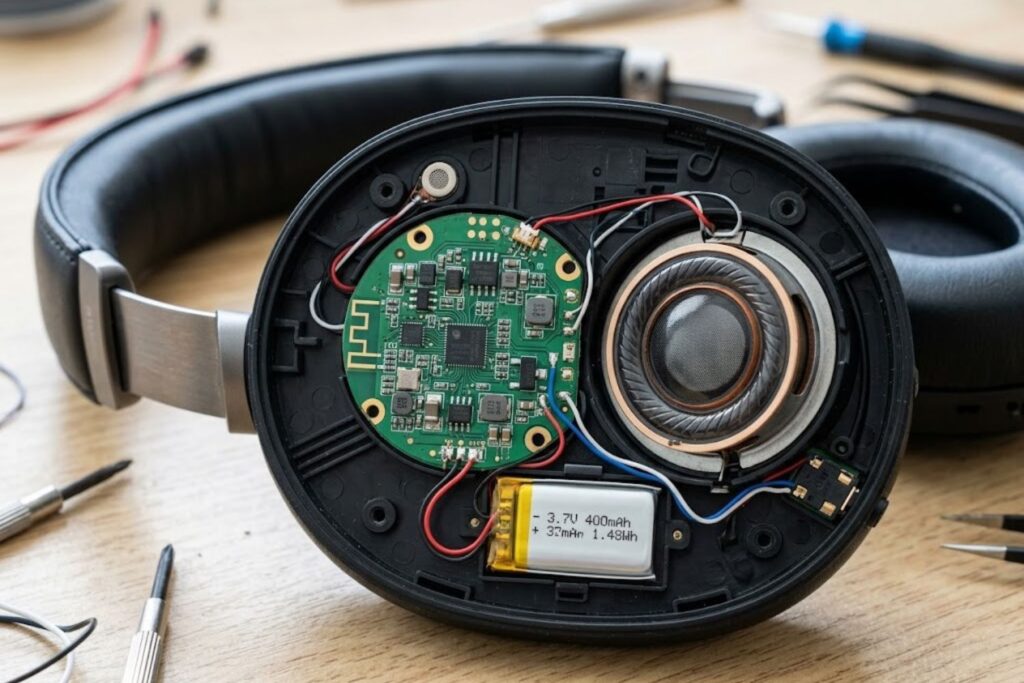
If you’re investing in quality USB headphones, understanding DAC technology helps you understand what you’re paying for.
What Is a DAC (Digital-to-Analog Converter)?
A DAC takes digital audio data (the 1s and 0s transmitted via USB) and converts it into analog electrical signals that headphone drivers can use to create sound.
Here’s why this matters: your device’s processor can’t create sound directly. Sound is a physical phenomenon—vibrating air. To create vibration, you need analog electrical signals to drive the speaker coils.
Every device that plays digital audio—phones, computers, headphones—contains at least one DAC. Sometimes there are multiple DACs in a single audio chain (one in your phone, another in your headphones).
Built-in DACs vs. External DACs
Built-in DAC: Inside your USB headphones or USB headset. Converts USB signal to analog audio at the headphones themselves. Common in consumer headphones and gaming headsets.
External DAC: A separate device you connect between your source and headphones. Used by audiophiles and professionals. External DACs can be higher quality than built-in solutions because they have more space for quality components.
For example: A professional might connect a phone → USB-C cable → external DAC/amplifier → studio headphones. Each component is optimized separately.
A consumer uses: Phone → USB-C headphones with built-in DAC.
Audio Resolution: 16-bit/48kHz vs. High-Resolution Audio
These numbers matter more than you might think.
16-bit/48kHz (Standard CD Quality)
- Default for streaming services (Spotify, Apple Music, YouTube)
- Sufficient for most listeners
- What most USB headphones support
24-bit/192kHz (High-Resolution Audio)
- Found on lossless streaming services (Apple Music Lossless, TIDAL HiFi)
- Requires compatible DAC and headphones
- Noticeable improvement for trained ears with quality equipment
- Premium USB headphones and external DACs support this
DSD (Direct Stream Digital)
- Minority format used by some high-end audio players
- Not relevant for most USB headphones
- Usually only encountered in professional/audiophile contexts
The practical implication: if you’re listening to Spotify, a standard 16-bit/48kHz USB headphone is perfectly adequate. If you’ve invested in lossless audio files and want to hear every detail, you need a high-resolution DAC.
How DAC Quality Affects Sound
A quality DAC affects:
- Frequency Response: Can the DAC accurately reproduce frequencies from 20Hz to 20kHz (human hearing range)?
- Signal-to-Noise Ratio (SNR): How much background noise is present? Higher is better.
- Total Harmonic Distortion (THD): Lower is better. Cheap DACs introduce audible distortion.
- Jitter: Timing accuracy in signal conversion. High jitter causes subtle distortion.
Real-world difference: Budget DACs (often found in $20-50 USB headphones) might have 80-90dB SNR. Quality DACs (in $200+ headphones) achieve 100+ dB SNR. To an untrained ear, this might be imperceptible. To someone trained on quality audio, it’s obvious.
This is why professional headphone users often invest in external DACs separate from their headphones. It gives them control over the most critical component affecting sound quality.
Connector Compatibility: What Works With What
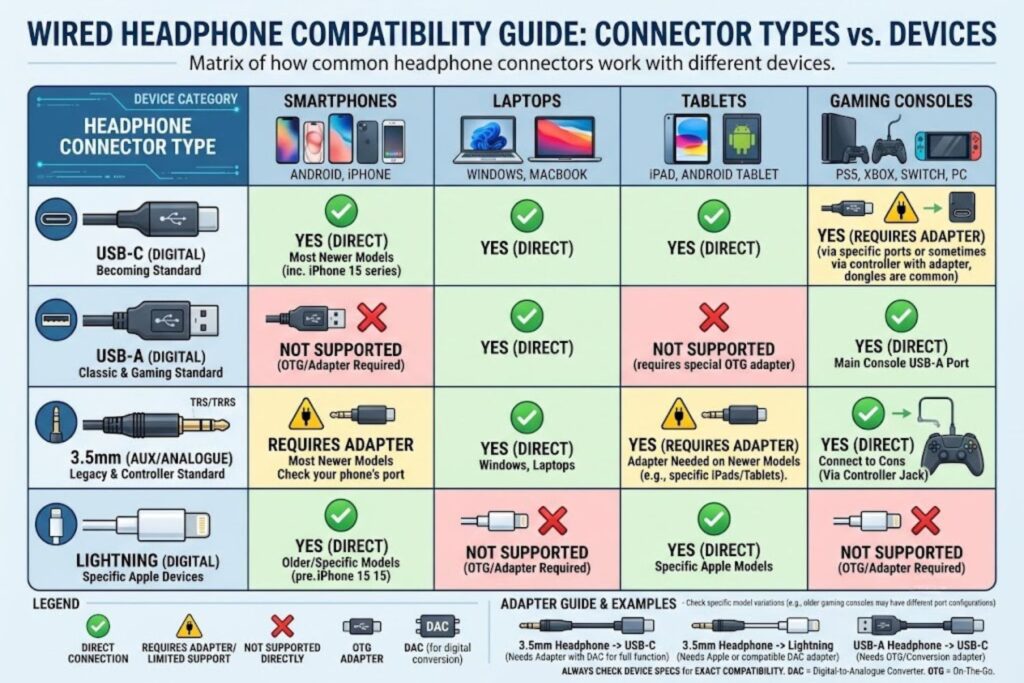
This is the practical section—how to ensure your headphones actually work with your devices.
USB-A Headphones With Modern Devices
Desktop Computer: USB-A works natively. No adapter needed.
Laptop: Depends on model. Newer laptops are dropping USB-A entirely, focusing on USB-C or Thunderbolt. Mid-range laptops often have one USB-A port. Check your device specs.
Smartphone: Won’t work. Phones use USB-C (Android) or Lightning (older iPhones). You’ll need an adapter.
Tablet: Varies. iPad Pro models use USB-C or Lightning. Older iPads might have USB-A (unlikely). Android tablets vary wildly.
Gaming Console:
- PS4: USB-A works fine
- PS5: Has USB-A ports, so USB-A headsets work
- Xbox One/Series X: USB-A works
- Nintendo Switch: Requires USB-C adapter
USB-C Headphone Compatibility Chart
| Device | Native USB-C Support | Needs Adapter |
|---|---|---|
| iPhone 15+ | No (uses Lightning) | Yes, USB-C adapter needed |
| iPhone 14 and older | No (uses Lightning) | Yes, needs Lightning headphones |
| Samsung Galaxy S24 | Yes | No |
| Google Pixel 8 | Yes | No |
| iPad Pro (2018+) | Yes | No |
| MacBook Pro (2016+) | Yes | No |
| MacBook Air (2017+) | Yes | No |
| Windows Laptops | Depends (check ports) | Check your model |
| Nintendo Switch | Yes | No |
| PS5 | Not standard (USB-A primary) | Yes, USB-C adapter available |
| Xbox Series X | Not standard (USB-A primary) | Yes, USB-C adapter available |
Using Adapters & Dongles Effectively
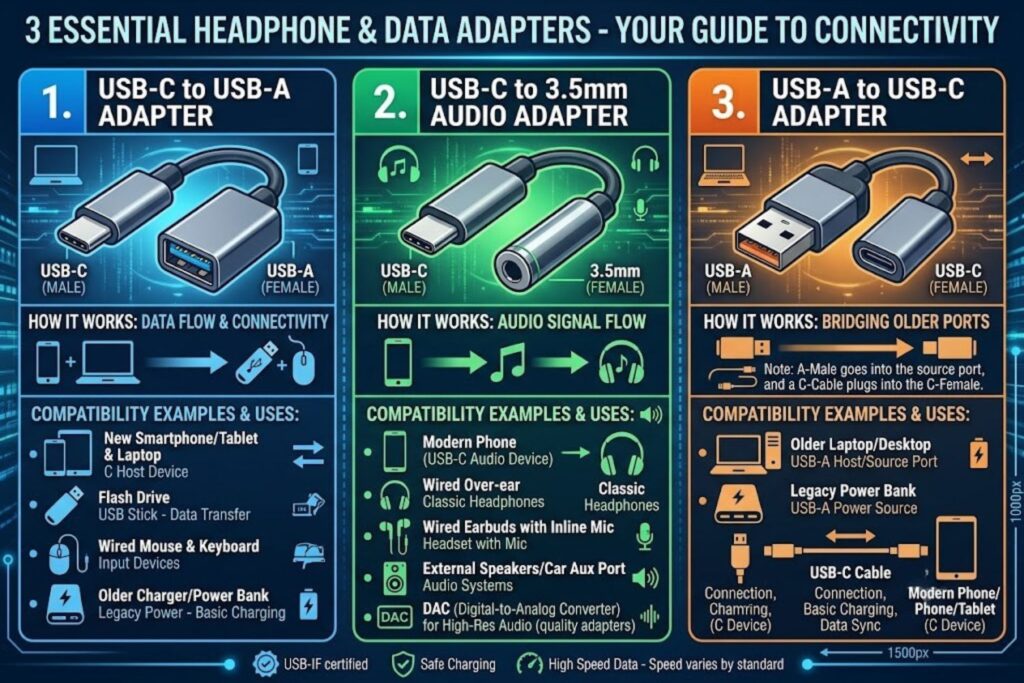
An adapter bridges two incompatible connectors. Understanding which adapter you need is crucial.
USB-C to USB-A Adapters
These let you connect older USB-A headphones to USB-C devices.
What to expect:
- Small form factor (2-3 inches)
- Passive (no electronics required)
- Works with most USB-A devices
- Inexpensive ($5-15)
Limitation: USB-A to USB-C adapters don’t carry power. If your USB-A headphones have a built-in amplifier that requires power, the adapter might not provide sufficient power.
Recommendation: Use these for standard passive USB-A to USB-C headphone connections. If you need power delivery, check whether your specific headphones support passthrough charging.
USB-C to 3.5mm Converters (With Built-in DAC)
These are different. Since USB-C devices don’t have headphone jacks, these converters include a built-in DAC to convert digital USB audio to analog 3.5mm audio.
What to expect:
- Small brick-shaped adapter
- Contains active electronics (a DAC chip)
- Requires USB power to operate (either directly from the port or via a separate power connection)
- Enables use of all your legacy 3.5mm headphones
- Price range: $10-80 depending on DAC quality
Important consideration: These adapters drain battery faster than direct connection because the DAC requires power. On smartphones, you might notice slightly reduced battery life.
Quality variation: The DAC quality varies dramatically. A $8 adapter might have significant audio distortion. A $40 adapter with a quality DAC will sound noticeably better.
Best practice: If using 3.5mm headphones with USB-C devices daily, invest in a quality adapter. The battery drain and sound quality improvement justify the expense.
Cross-Platform Compatibility Issues
Mac vs. Windows: USB audio drivers differ between operating systems. A USB headphone designed for Windows might need custom drivers installed on Mac, or vice versa. Check manufacturer specifications—most quality headphones include drivers for both OS.
Android Device Compatibility: Most Android phones and tablets recognize USB-C audio natively. However, older devices with micro-USB might need drivers. Check your device’s specifications.
iOS Compatibility: iPhone and iPad Pro (with USB-C models) generally recognize USB-C audio without special drivers. Lightning devices require either lightning-compatible headphones or the USB-C to Lightning adapter.
Gaming Consoles: PS5 and Xbox Series X/S have different USB implementations. Some headphones work natively on one console but not the other. Always check console-specific compatibility.
How to Choose the Right Headphone Connector USB
This is where theory meets practical decision-making.
Step 1: Assess Your Device’s USB Ports
Before buying anything, know what your device has.
Your main device: The one you’ll use headphones with most frequently.
- Identify the USB port type (USB-A, USB-C, or Lightning)
- Check whether your device might be replaced in the next 2-3 years
- Consider secondary devices you might use headphones with
Secondary devices: Phones, tablets, laptops you might occasionally use headphones with.
- USB-A is becoming obsolete but still common on desktops
- USB-C is the modern standard for most new devices
- Lightning is exclusive to Apple devices
Step 2: Match Connector Type to Your Use Case
If you primarily use desktop computers: USB-A is still viable, but purchasing USB-C headphones with a USB-A adapter ensures future compatibility.
If you primarily use smartphones/tablets: USB-C is the smart choice. 95% of new phones use USB-C.
If you use multiple devices: USB-C headphones with a USB-C to USB-A adapter for desktop compatibility gives you the most flexibility.
If you primarily use older devices: USB-A headphones or 3.5mm headphones with an adapter might be most cost-effective.
Step 3: Future-Proofing Your Investment
Headphones are tools you’ll use for years. Think beyond your current device.
Consider:
- Device upgrade cycles: Will you replace your primary device within the next 2 years? USB-C is safer long-term.
- Connector obsolescence: USB-A is still common but declining. USB-C adoption is accelerating across all device types.
- Ecosystem lock-in: Are you invested in Apple products? Lightning headphones only work with iPhones/iPads (older models). USB-C headphones work with everything.
- Adapter universality: USB-C adapters are becoming ubiquitous. In 5 years, they’ll be cheaper and more available than USB-A adapters.
Practical rule: If buying today, lean toward USB-C unless you’re purchasing for a specific legacy device.
Step 4: Professional vs. Consumer Requirements
Consumer audio:
- Standard 16-bit/48kHz is sufficient
- No special driver requirements
- Plug-and-play setup
- Price range: $20-200
Professional audio:
- High-resolution audio (24-bit/192kHz) support important
- Custom drivers often required for DAW integration
- Monitor mixing and production priorities
- Price range: $200-800+
Gaming:
- USB connection often preferred over wireless for lower latency
- Microphone quality for team communication important
- Sometimes requires console-specific drivers
- Price range: $80-300
Common Problems & How to Fix Them
Even with the right equipment, USB audio can be troublesome. Here’s how to solve the most common issues.
Problem 1: USB Headphones Not Recognized by Device
Symptoms: Device doesn’t detect headphones. No audio output option appears.
Solution Steps:
- Disconnect and reconnect: Unplug the headphones, wait 5 seconds, plug back in. Sometimes the OS just needs to re-detect.
- Check device’s audio settings:
- Windows: Settings → Sound → Advanced → Make sure the USB device appears in the output list
- Mac: System Preferences → Sound → Output → Select USB device
- Phone: Settings → Bluetooth (if wireless) or ensure USB recognition is enabled
- Update drivers (Windows/Mac): Visit the headphone manufacturer’s website, download the latest drivers for your OS, and install.
- Try a different USB port: USB hub issues are common. Connect directly to a port on the device.
- Test on another device: If your headphones work on another computer but not your primary device, the issue is device-specific, not the headphones.
- Check USB power: Some USB headphones require significant power. Try a powered USB hub.
Still not working? The headphones might need a factory reset (check the manual). If that fails, they might be defective.
Problem 2: Audio Quality Issues & Interference
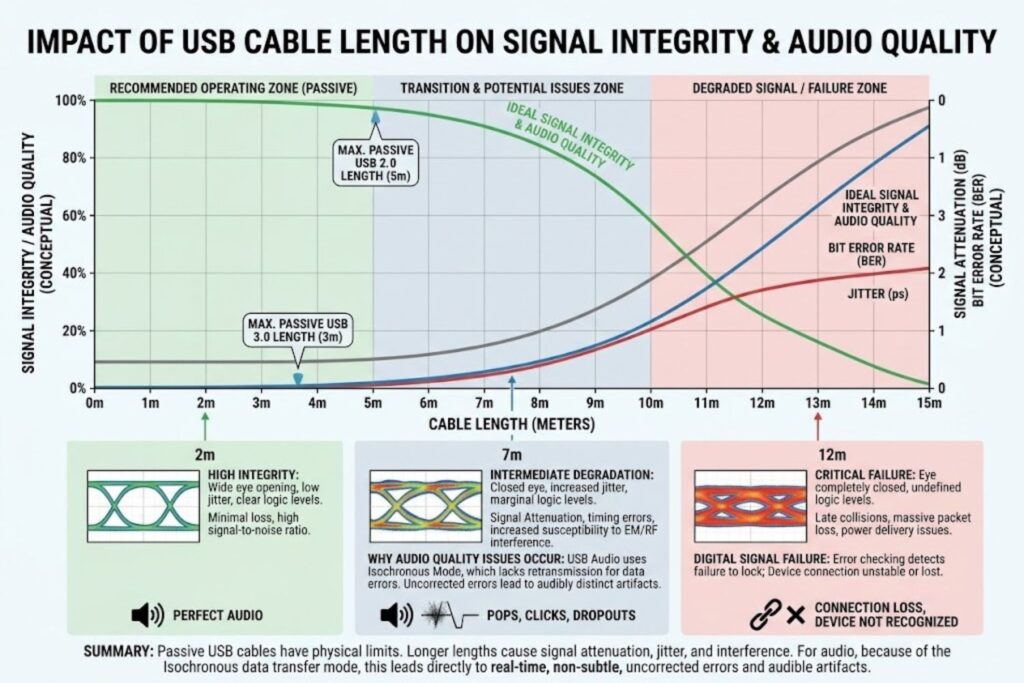
Symptoms: Audio is distorted, crackling, or has occasional dropouts. Sometimes sounds like electrical interference.
Causes:
- USB port providing insufficient power (especially for active DACs)
- USB cable too long or of poor quality
- Electromagnetic interference from other devices
- DAC driver conflict
- Audio settings in software
Solution Steps:
- Try a different USB cable: Many audio issues stem from poor-quality USB cables. Use a high-quality, preferably shielded cable under 10 feet.
- Move away from interference sources: Microwaves, wireless routers, and cell phones can cause USB audio interference. Keep USB headphones away from these.
- Use a powered USB hub: If your device’s USB port isn’t providing enough power, this solves the issue.
- Reduce USB cable length: Longer cables can degrade signal. Use the shortest practical cable.
- Disable other USB devices: Too many USB devices drawing power can reduce available power for headphones. Disconnect non-essential USB devices.
- Check audio sample rate settings: Windows audio sometimes defaults to higher sample rates than the DAC supports. Go to Sound Settings, select your USB device, click Properties, Advanced, and try lower sample rates (48kHz instead of 192kHz).
- Update/reinstall drivers: Outdated drivers cause audio distortion. Update to the latest version from the manufacturer’s website.
Problem 3: Connection Drops & Stability Problems
Symptoms: Audio cutting out frequently. Sometimes the device disconnects and reconnects the headphones.
Causes:
- USB hub or port issues
- Power management settings
- Firmware bugs in headphones
- USB port overloading
Solution Steps:
- Connect directly to device (not hub): USB hubs introduce connection complexity. Connect directly to the device’s USB port.
- Disable selective USB suspension (Windows):
- Device Manager → Universal Serial Bus Controllers
- Right-click USB Root Hub → Properties → Power Management
- Uncheck “Allow computer to turn off this device”
- Update headphone firmware: Many gaming and professional headsets include firmware updates on manufacturers’ websites. Updating often resolves connection stability.
- Check BIOS settings (Windows): Go to Device Manager, find your USB controller, check that it’s using the latest driver. Update if available.
- Reduce electrical load: Disconnect other USB devices, especially high-power devices like external hard drives.
- Try a different device: If connection drops occur on multiple devices, the headphones have a hardware issue.
Problem 4: Driver Installation & Configuration
Symptoms: Headphones connect but audio is silent or sounds wrong. Settings don’t seem to apply.
Windows Driver Issues:
- Check Device Manager (right-click Start → Device Manager)
- Look under “Sound, video and game controllers”
- If there’s a yellow exclamation mark, the driver needs updating
- Right-click the device → Update Driver → Search automatically for drivers
- If that fails, download the driver directly from the manufacturer’s website
Mac Driver Issues:
Mac usually handles USB audio drivers automatically. If not:
- Go to System Preferences → Sound → Output
- If your USB device appears but produces no sound, try resetting the audio system
First, identify the issue. Then follow manufacturer-specific guidance. Quality headphone manufacturers provide detailed driver installation guides.
Problem 5: Power Delivery Issues
Symptoms: Headphones’ active features (ANC, amplification) not working. Battery indicator shows no charge (for wireless models).
Causes:
- USB port not providing enough power
- Faulty USB cable
- Headphone battery defective
- Software power management disabling the device
Solution Steps:
- Use a powered USB hub: Provides more stable, higher power than device USB ports.
- Try a different USB port: Some ports on your device provide more power than others. Try all available ports.
- Charge via AC adapter (if applicable): If headphones came with an AC charging cable, use that instead of USB for more reliable charging.
- Check power settings in software: Windows Sound Settings → Device Properties → Advanced. Ensure the device isn’t being power-managed aggressively.
- Factory reset the headphones: Hold the power button for 10+ seconds. Consult your headphone manual for specific reset procedure.
Installation & Setup Guide
Different devices require different approaches. Here’s the comprehensive setup guide.
Plug-and-Play USB Headphones Setup
For most consumer USB headphones and adapters:
- Unbox and inspect: Check for included documentation or driver installation instructions.
- Connect to device: Insert the USB connector. Wait 2-3 seconds for the device to recognize the headphones.
- Select as audio output:
- Windows: Right-click the speaker icon in the system tray → Sound Settings → Select USB device as output
- Mac: System Preferences → Sound → Output tab → Select USB device
- Phone: Usually automatic. If not, check Sound Settings
- Gaming console: Settings → Audio → USB Headset
- Test audio: Play audio and verify it’s coming through the USB headphones.
- Adjust volume: Most USB headphones have built-in volume controls. If not, adjust in software.
- Optional: Set as default device: This ensures future audio plays through USB headphones automatically.
That’s it for basic setup. If your specific headphones required drivers, this would have happened in step 1.
Installing Custom Drivers (When Needed)
Some professional USB headsets and gaming headsets include proprietary drivers enabling advanced features (programmable buttons, custom equalizers, etc.).
When drivers are needed:
- Professional audio interfaces and studio headphones
- Gaming headsets with programmable buttons
- Headphones with custom software (equalizers, surround sound)
Installation process:
- Visit manufacturer’s website: Find your headphone model and download the driver package for your OS.
- Run the installer: Extract the downloaded file and run the .exe (Windows) or .app (Mac).
- Follow the installation wizard: Accept terms, select installation location, complete.
- Restart your device: Some drivers require a restart to take effect.
- Plug in headphones: Now the device will recognize the headphones with the new driver installed.
- Launch the manufacturer’s software (if applicable): Some headphones include configuration software (e.g., Razer Synapse, SteelSeries Engine). Install and launch this to customize settings.
Troubleshooting driver installation:
- If installation fails, uninstall any previous versions of the driver first
- Download the most recent driver version (not beta)
- Run the installer as Administrator (right-click, Run as administrator)
- Check that your device is plugged in during installation
- Restart your device after installation
Configuring Audio Settings in Windows
Once your USB headphones are recognized, you might want to optimize audio settings for the best experience.
Step 1: Set as Default Device
- Right-click the speaker icon → Sound Settings
- Scroll to “Advanced” → Volume mixer
- Look for your USB headphones in the list
- Right-click → Set as default device
Step 2: Adjust Audio Quality
- Right-click your USB device in Sound Settings
- Click “Properties” → “Advanced”
- Change the sample rate/bit depth. For streaming audio, 16-bit, 48kHz is sufficient. For professional audio, use 24-bit, 192kHz if supported.
Step 3: Disable Exclusive Mode (optional)
- Right-click your USB device → Properties → Advanced
- Uncheck “Allow applications to take exclusive control of this device”
- This lets Windows handle audio mixing better but might slightly reduce sound quality
Step 4: Boost Volume (if needed)
- Right-click your USB device → Properties → Levels
- Adjust the volume slider. If maximum volume seems low, this is the culprit.
Setting Up USB Audio on Mac
Mac usually handles USB audio seamlessly, but here’s the comprehensive setup:
Step 1: System Recognition
- Plug in USB headphones
- Mac automatically detects and loads drivers
- No manual driver installation needed for standard USB audio
Step 2: Select as Output Device
- Click the Apple menu → System Preferences → Sound
- Click the “Output” tab
- Select your USB headphones from the list
Step 3: Adjust Input/Output Levels
- In the same Sound preferences window
- Adjust the “Output volume” slider
- If you have a USB microphone, adjust the “Input volume” as well
Step 4: Configure for Specific Applications
- Some Mac audio applications (DAWs, music players) let you choose audio devices per-app
- In the application preferences, find the audio settings and select your USB headphones
Pro tip for Mac users: If your USB headphones don’t appear in the Sound preferences, try unplugging and replugging the USB connection. If that doesn’t work, restart your Mac.
Linux & Alternative OS Compatibility
Linux support for USB audio varies by distribution and specific hardware.
Ubuntu/Debian (most common):
- Most USB headphones work natively
- If not recognized:
lsusbcommand in terminal lists USB devices - Audio settings in the system preferences usually offer USB device selection
- ALSA (Advanced Linux Sound Architecture) is the underlying audio system
Fedora/RedHat:
- Similar approach to Ubuntu
- PulseAudio usually handles USB audio automatically
- Check audio settings in the sound preferences
Arch Linux:
- More manual configuration required
- ALSA and PulseAudio configuration files might need modification
- The Arch Wiki has detailed USB audio troubleshooting
Windows Subsystem for Linux (WSL):
- USB audio support is limited in WSL
- Better to use Windows native audio settings when possible
For any Linux distribution: If USB headphones aren’t recognized, check the following:
- Plugin is detected:
dmesg | tailin terminal shows USB connection - Audio interface enumerated:
arecord -lorspeaker-test -lshows USB device - Volume levels:
alsamixercommand opens the volume mixer - ALSA configuration: Check
/etc/asound.conffor audio routing
Most users on Linux don’t encounter issues. The OS has excellent USB audio support. When issues occur, they’re usually fixable with minor configuration adjustments.
The Future of Headphone Connector USB
The audio landscape is changing. Understanding the direction helps you make future-proof purchasing decisions.
USB-C’s Growing Dominance
USB-C adoption across consumer electronics is accelerating. Within the next 2-3 years, we’ll see:
Phone and Tablet Standardization: All major manufacturers have committed to USB-C (Apple with iPhones 15+, Google with all Pixels, Samsung with all flagships). The headphone jack is already extinct. USB-C is the standard.
Laptop Convergence: New laptops increasingly use USB-C as the primary connectivity method. This extends to charging, data transfer, and audio.
Accessory Ecosystem: USB-C headphones, adapters, and audio devices are proliferating. Choice and affordability improve as the market standardizes.
Professional Audio Adoption: Professional recording interfaces are adding USB-C options. High-end headphones increasingly include USB-C models.
Wireless Technology vs. Wired USB
The real disruption isn’t USB-C vs. 3.5mm. It’s wireless vs. wired.
Bluetooth’s Evolution: Bluetooth 5.3 and beyond offer lower latency, better audio quality, and longer range. Gaming headsets—historically requiring wired USB for low latency—are moving to wireless.
WiFi Audio: WiFi 6/7 enables high-quality wireless audio with minimal latency. Some professional audio systems already use proprietary WiFi audio.
Hybrid Models: Many premium headphones now include both wireless and USB-C. You get wireless convenience with the option to plug in via USB-C for lower latency or when batteries are dead.
The wired USB advantage: Professional, gaming, and studio settings still prefer wired USB because:
- Zero latency (critical for gaming and recording)
- Guaranteed connection (no interference)
- Power delivery from the device
- Higher quality audio transmission
Wireless will dominate consumer audio. USB-C will remain essential for professionals and gamers.
Emerging Standards & Technologies
USB4/Thunderbolt 4: These advanced protocols support audio but are primarily for data transfer. Unlikely to become standard for consumer headphones.
HDMI Audio: Some professional and gaming headsets use HDMI for higher bandwidth audio. Not relevant for portable applications but important for home theater.
Proprietary Standards: Gaming headset manufacturers sometimes use proprietary wireless protocols. These won’t become universal standards.
Software-based DACs: Increasingly, devices offload DAC functionality to software. The device’s processor handles conversion. This reduces headphone complexity but requires more computational power.
What’s Happening to the 3.5mm Jack
The 3.5mm jack isn’t dead—it’s just disappeared from portable devices.
Where it survives:
- Professional studio equipment (mixing consoles, audio interfaces, monitors)
- DJ equipment
- Guitars and musical instruments
- Cars (though increasingly through USB or Bluetooth)
- Older consumer electronics (still functioning)
- Legacy audio equipment in offices and studios
Why it persists in professional audio:
- It’s a proven standard that “just works”
- Manufacturers have decades of design expertise
- Audio quality is excellent for analog signals
- Moving away requires retraining users
The practical reality: For consumers, the 3.5mm jack is obsolete. For professionals, it’s still essential but gradually declining as USB-C and wireless alternatives mature.
Real-World Use Cases & Recommendations
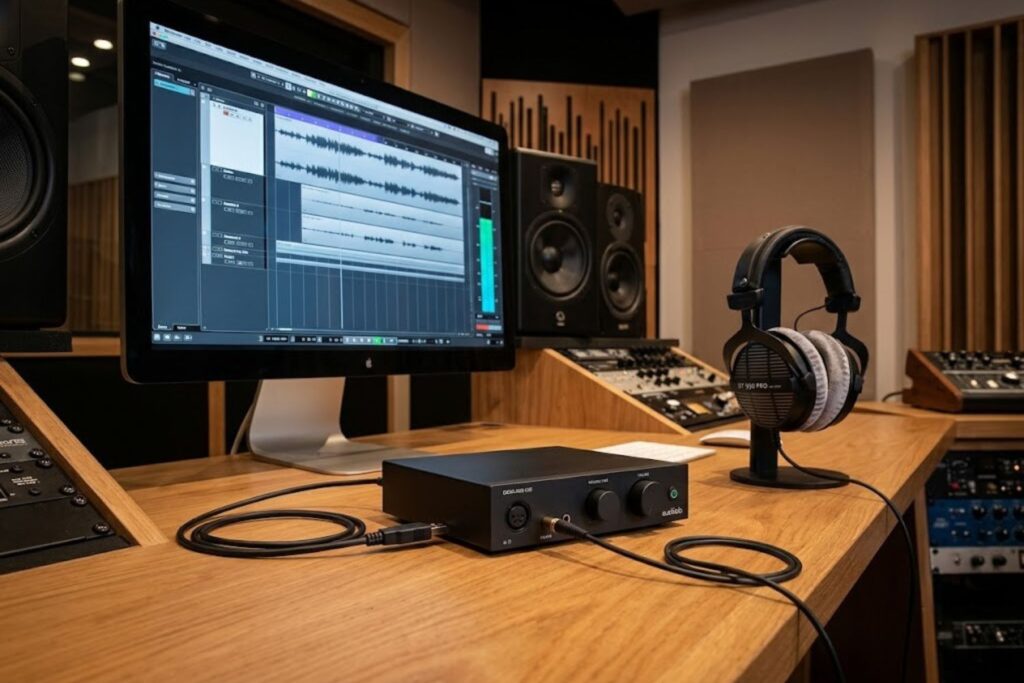
Theory is fine, but what should you actually buy for your situation?
Professional Audio & Studio Production
Requirements:
- High-resolution audio support (24-bit/192kHz minimum)
- Quality DAC (at least 100dB SNR)
- Stable, dedicated connection
- Minimal latency for real-time monitoring
Recommendation: For recording and mixing, invest in professional studio headphones with an external DAC. The headphones don’t need USB—they connect via 3.5mm to the external DAC. The external DAC connects via USB to your computer.
Why? External DACs are superior to built-in solutions. They have better power supplies, larger transformers, and more room for quality components.
Specific configuration example:
- DAW (like Ableton or Logic Pro) running on your Mac/PC
- USB-C or USB-A cable from computer to external DAC
- High-quality XLR or 3.5mm cable from DAC to studio headphones
- This setup costs $300-800 but delivers professional-grade audio
Alternative (budget-friendly): Direct USB-C studio headphones (like beyerdynamic DT 900 Pro X USB) into your computer. Skip the external DAC. Still professional-grade for $200-400.
Gaming Headsets With USB Connectors
Requirements:
- Low latency (USB preferred over wireless for competitive gaming)
- Clear microphone for team communication
- Comfortable for 4+ hour sessions
- Programmable features (often require custom drivers)
Recommendation: USB-A or USB-C gaming headsets from established manufacturers (Corsair, SCUF, SteelSeries, HyperX). These offer:
- 2ms or lower latency through USB
- Noise-canceling microphone
- Programmable RGB lighting
- Detachable microphone
- Cross-platform compatibility (works on PC, console, phone with adapters)
Console-specific guidance:
- PlayStation 5: USB-A headsets work natively. USB-C requires an adapter.
- Xbox Series X/S: USB-A works natively. USB-C requires an adapter.
- Nintendo Switch: USB-C headsets work natively.
- PC: Both USB-A and USB-C work, but newer builds lean toward USB-C.
Price range: $100-300 for quality gaming headsets.
Call Center & VoIP Applications
Requirements:
- Microphone quality and noise isolation
- Hands-free answer/hang-up capability
- Day-long comfort
- Compatibility with multiple VoIP platforms (Zoom, Teams, Slack)
Recommendation: Professional USB headsets from call center specialists (Jabra, Plantronics/Poly, Sennheiser). These include:
- Purpose-built microphones for speech clarity
- Noise-suppression features
- Built-in mute and volume buttons
- Quick disconnect cables
- Boom microphone positioning
Platforms: Call center headsets work with any platform supporting USB audio. No special drivers needed for basic functionality. Advanced features (like automatic answer on incoming Zoom call) might require platform-specific software.
Price range: $100-400 depending on audio quality and build durability.
Travel & Portable Audio Solutions
Requirements:
- Compact size and lightweight
- Works with phone, laptop, and tablet
- Wireless and wired options
- Durable connectors
Recommendation: Wireless Bluetooth headphones with USB-C charging capability. Why?
- No connector compatibility worries (Bluetooth is universal)
- Lighter and more durable than carrying wired headphones
- Better for airplane usage
- Better comfort over long periods
If you must use wired: USB-C headphones with an included USB-A adapter for airport computers. Hybrid is ideal.
Specific example:
- Sony WH-CH720N Wireless Headphones (Bluetooth, USB-C charging)
- USB-C to USB-A adapter (for airport/office computers)
- Lightweight carry case
- Total package: light, durable, compatible with everything
Price range: $100-250 for quality travel headphones.